Managing users
How solidtime connects a sign-in to an account, and what happens to accounts afterwards. New accounts and email linking are set up under Behavior.
How an identity is matched to an account
solidtime tries these in order:
- Linked account. The IdP's user ID (the
subclaim) is already linked to a solidtime account at this provider. The user is signed in to that account. This is how every sign-in after the first one works. - Existing account with the same email. If Allow email-based account linking is on, an existing solidtime account with the same, verified email address is linked and signed in.
- New account. If Auto provision is on, a new account is created and linked.
If none of these apply, the sign-in is refused with "Account not found. Contact your administrator to get access." If an account with the email exists but can't be linked, the user sees "An account with this email address already exists, but it is not connected to this identity provider." instead, with a hint to sign in with their password or the way they signed in before. If that account has two-factor authentication turned on, the user is asked to log in with their password instead.
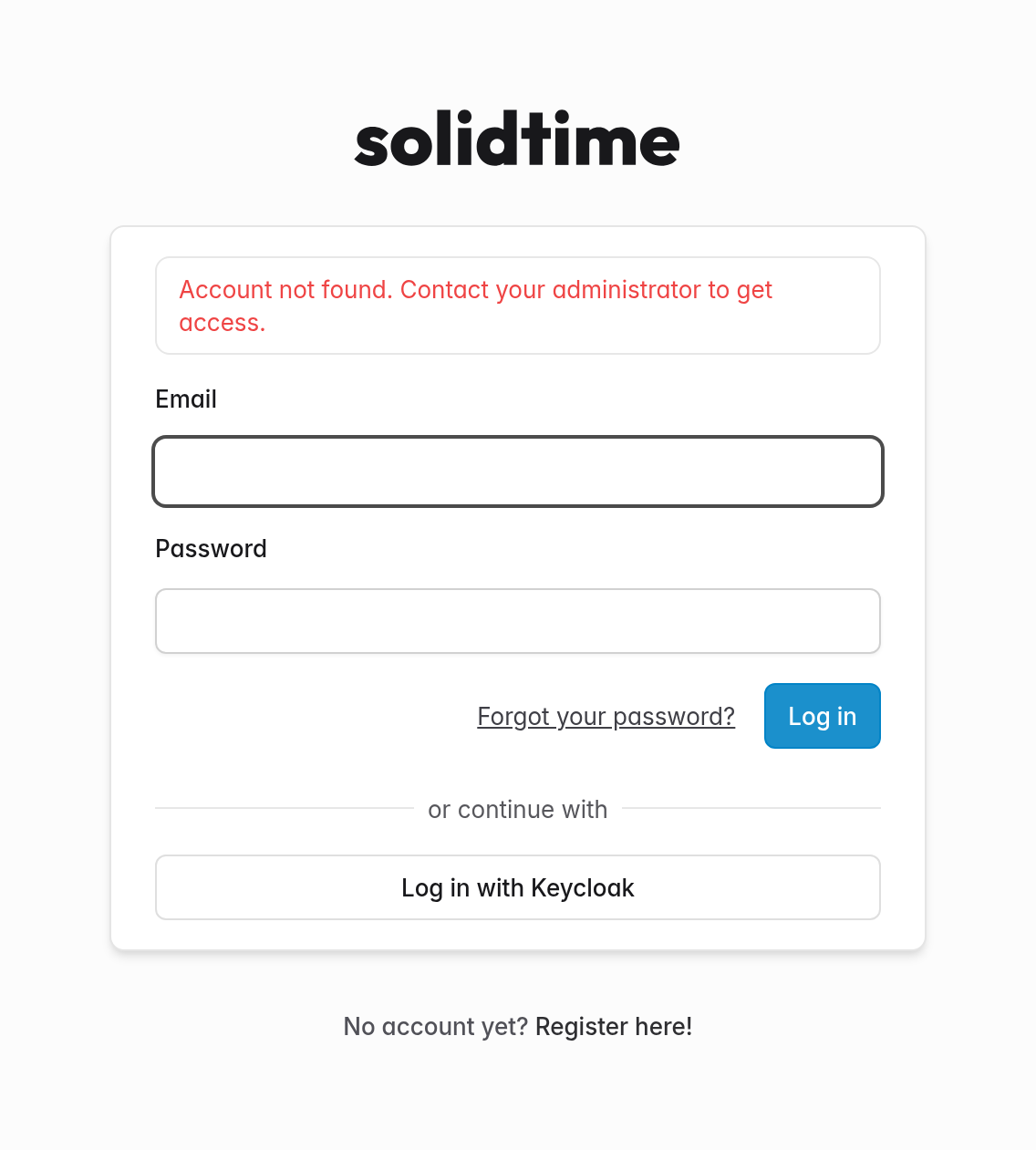
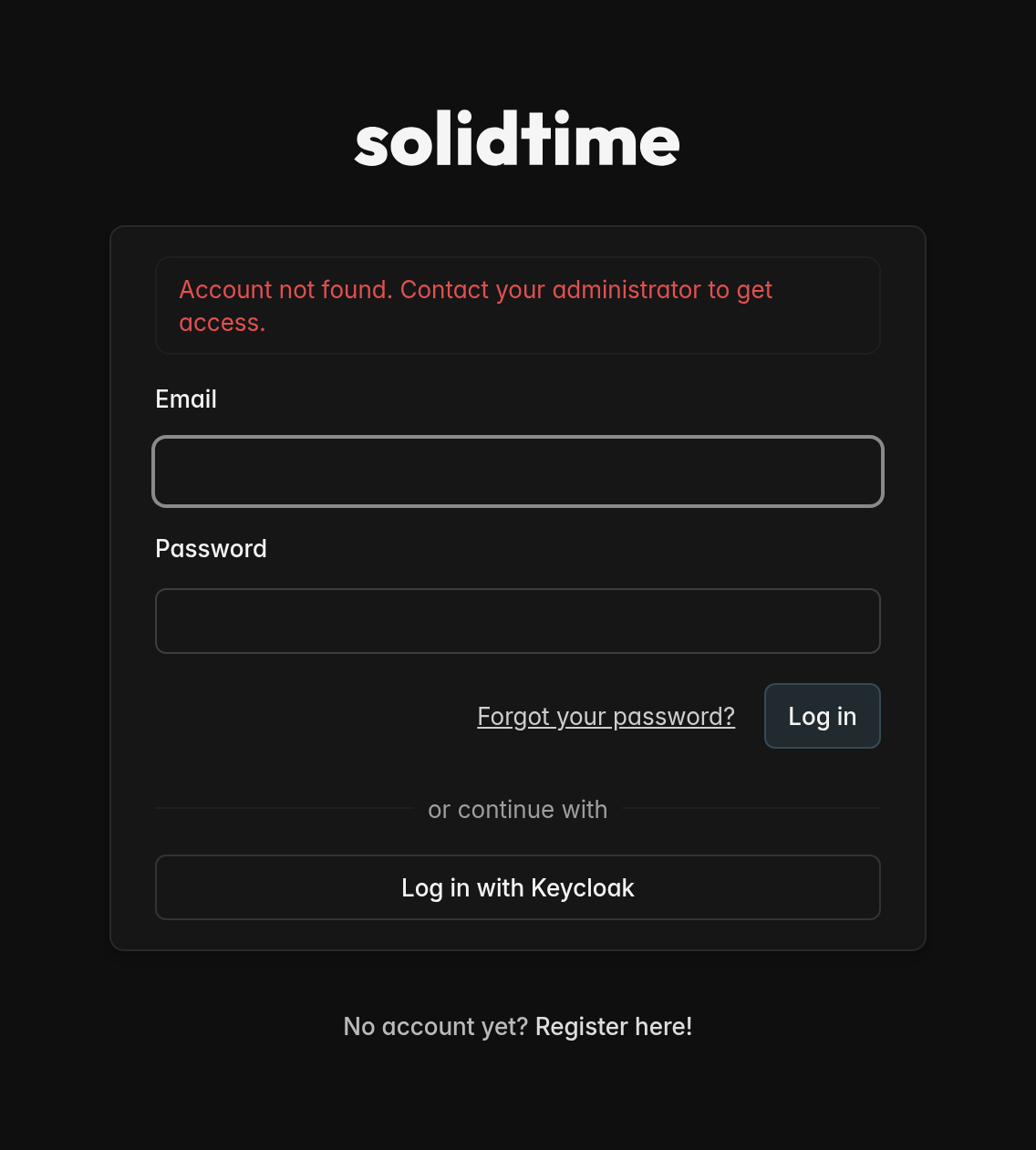
Accounts are matched by the IdP's user ID, never by name or username. After the first sign-in, a user's email address can change at the IdP and they still reach the same account.
Email address changes
While a user is linked to an active provider, the IdP manages their email address. They can't change it in solidtime; a change at the IdP is taken over on their next sign-in, and the old address gets a notification. A super admin can still change it in the super admin panel.
Managing linked users
The Linked users table on a provider's edit page lists every solidtime account connected to an identity at this provider, with the IdP's user ID (Subject, the sub claim) and when it was linked.
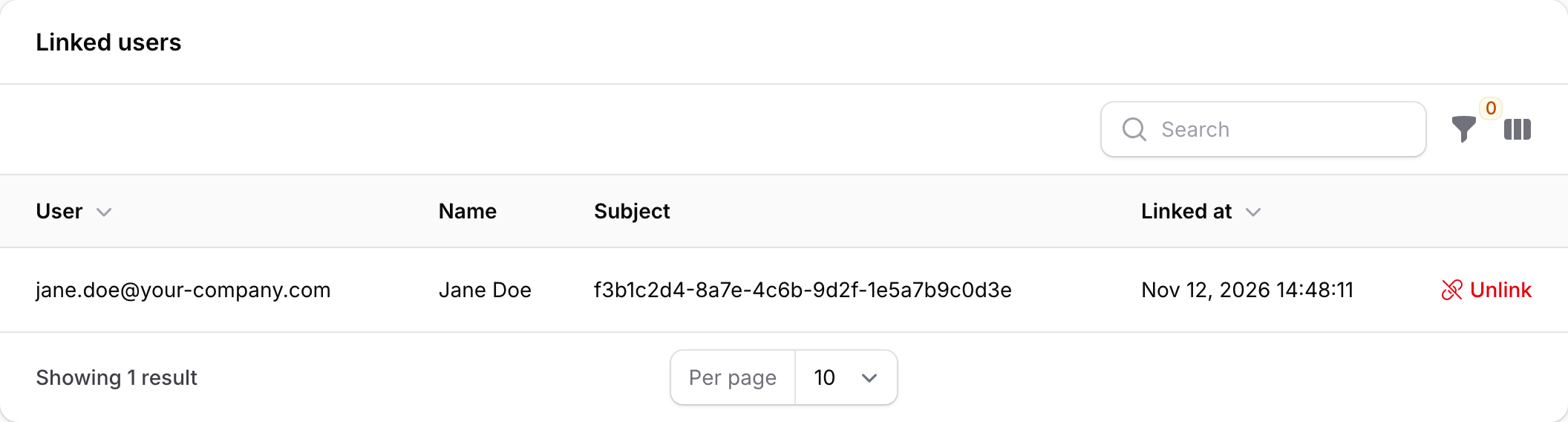
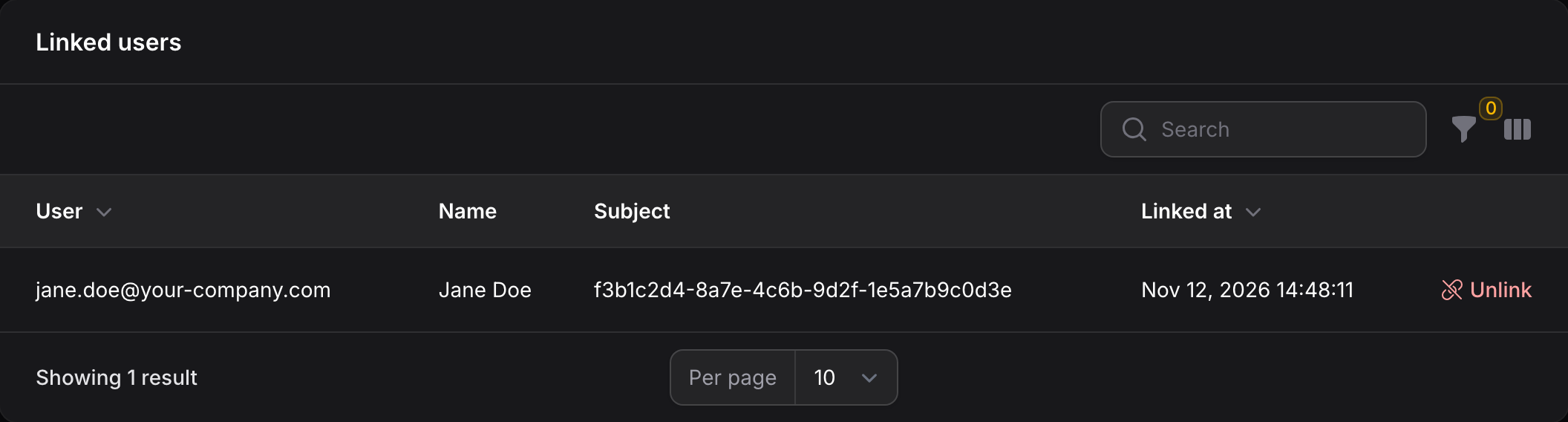
Unlink removes the connection. It doesn't delete the account. The user's sessions through this provider end on their next request, and their next sign-in with this provider is treated like a first sign-in (auto-provisioning or email linking, depending on your settings). If the link is their only way to sign in, they can set a password through "Forgot password" afterwards. While SSO is enforced, solidtime refuses to unlink them, because they couldn't set a password either.
Links can't be created by hand. They are only created by a successful sign-in, because the subject must be exactly what the IdP sends.
Removing users
SCIM is not currently supported, so solidtime doesn't learn when you remove someone in your IdP. Removing a user in your IdP (or from an allowed group) stops their next sign-in, but doesn't affect what they already have:
- Their current web session continues until it expires: by default after 120 minutes without activity (
SESSION_LIFETIME). - Their API tokens, desktop app and browser extension logins keep working.
- Their organization memberships stay in place.
When someone leaves, also deactivate them in solidtime: on the organization's Members page, open the member's menu and choose Deactivate. solidtime turns them into a placeholder member, so their time entries stay in the organization, and their account loses access to the organization's data right away. Alternatively, delete their account in the super admin panel, which also keeps their time entries as a placeholder (see Delete your account).
Deactivating doesn't unlink their account from the IdP. If they still pass the allow rules, they can sign in, but they no longer see the organization's data.