Adding an identity provider
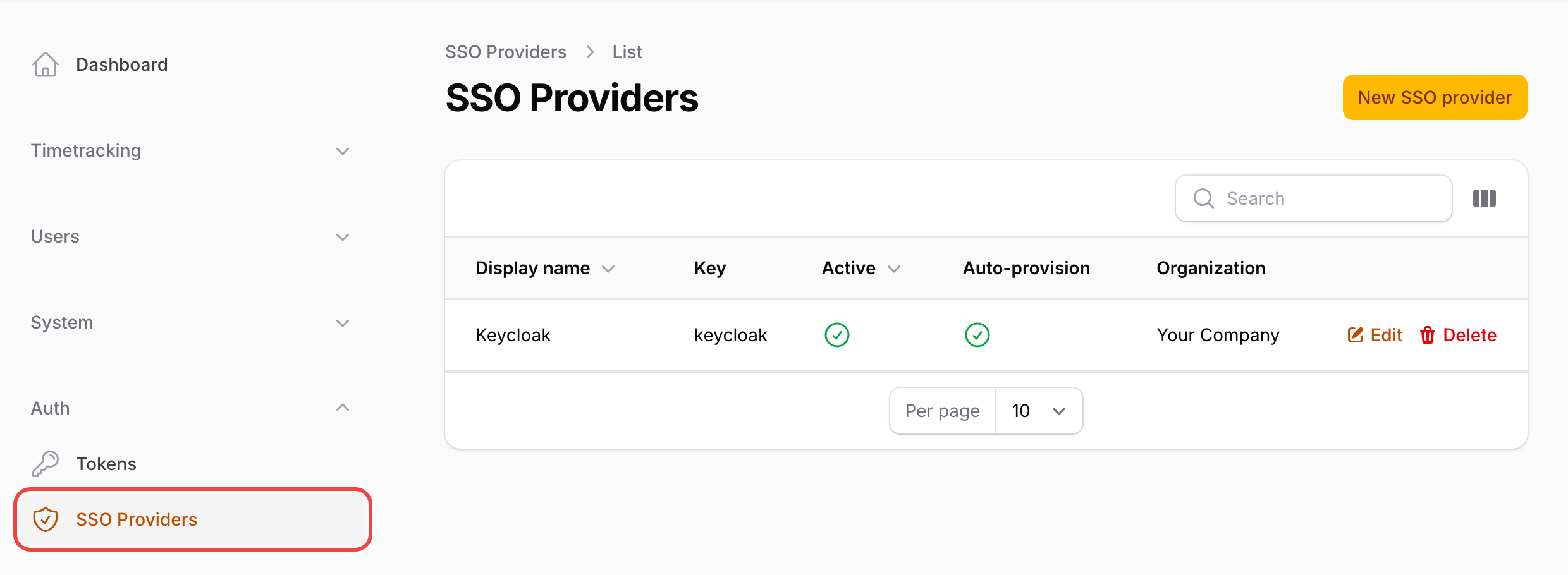
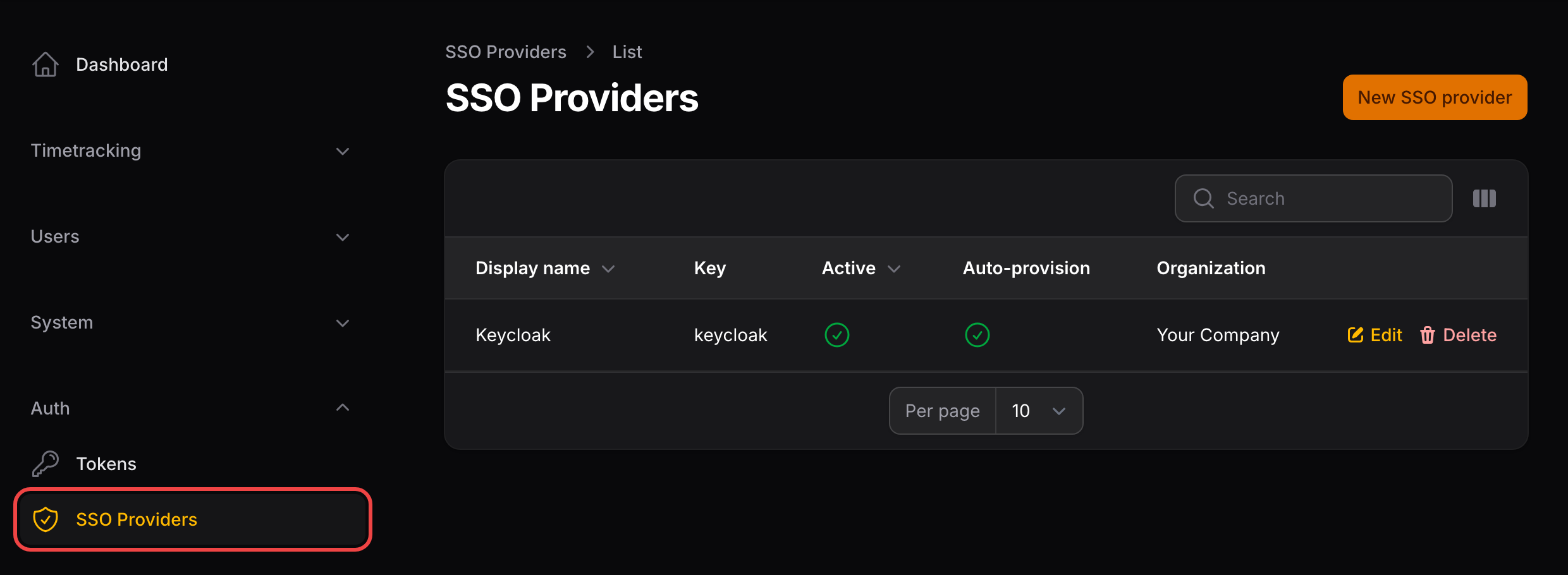
Identity providers are managed in the super admin panel under Auth → SSO Providers.
To set one up:
- Create the provider in solidtime to get its callback URL.
- Register solidtime as an application (a "client") in your IdP with that callback URL, and copy its client ID and client secret.
- Enter the client ID, client secret and the IdP's issuer URL in solidtime, and let solidtime discover the rest.
- Decide who may sign in, test it, and turn the provider on.
This page walks through the solidtime side field by field. The provider guides show the IdP side for each provider.
1. Create the provider
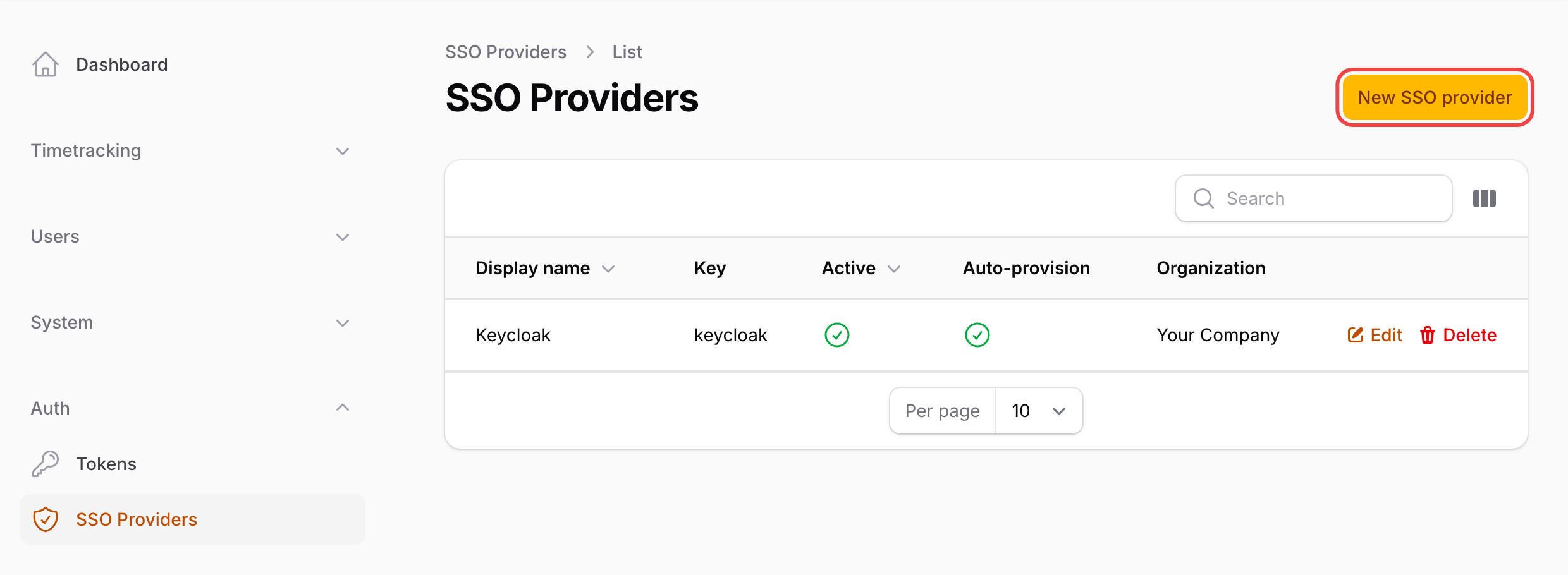
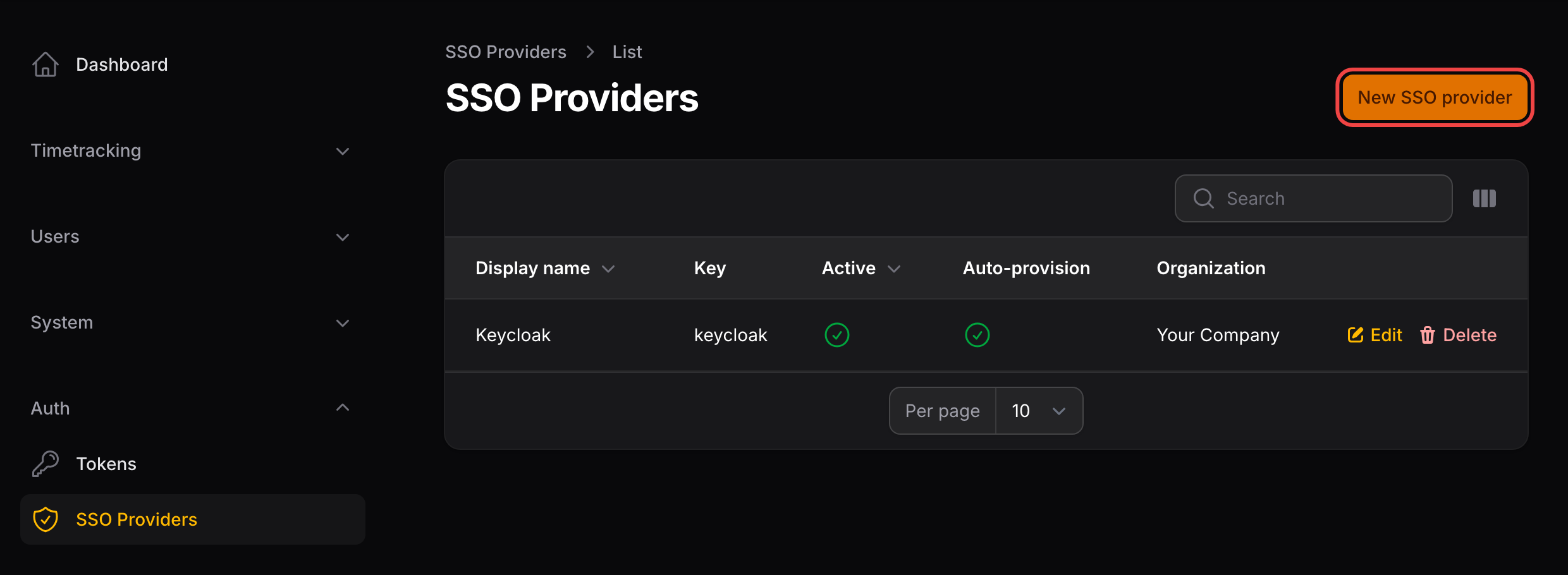
Click New SSO provider.
Basics
The basics name the provider and decide when it shows up on the login page.
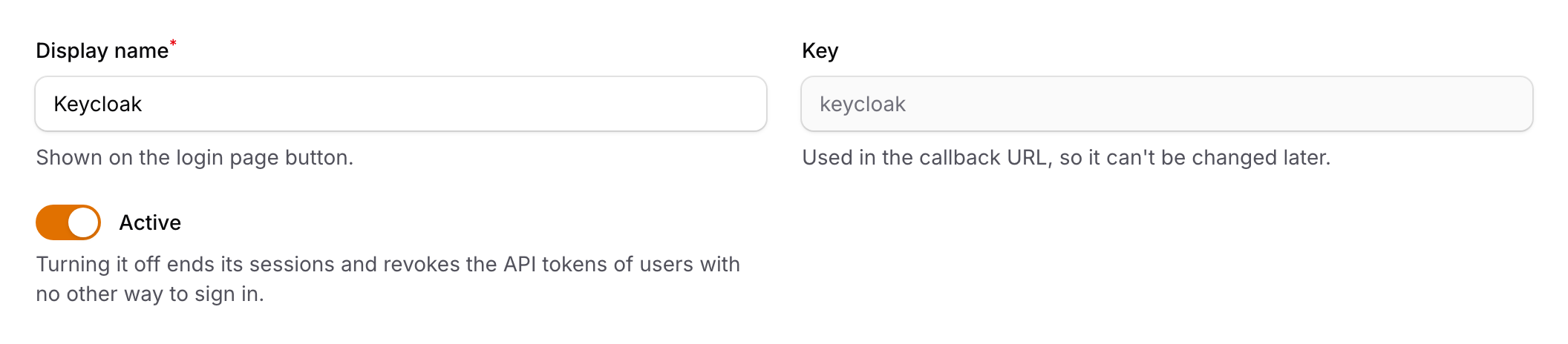
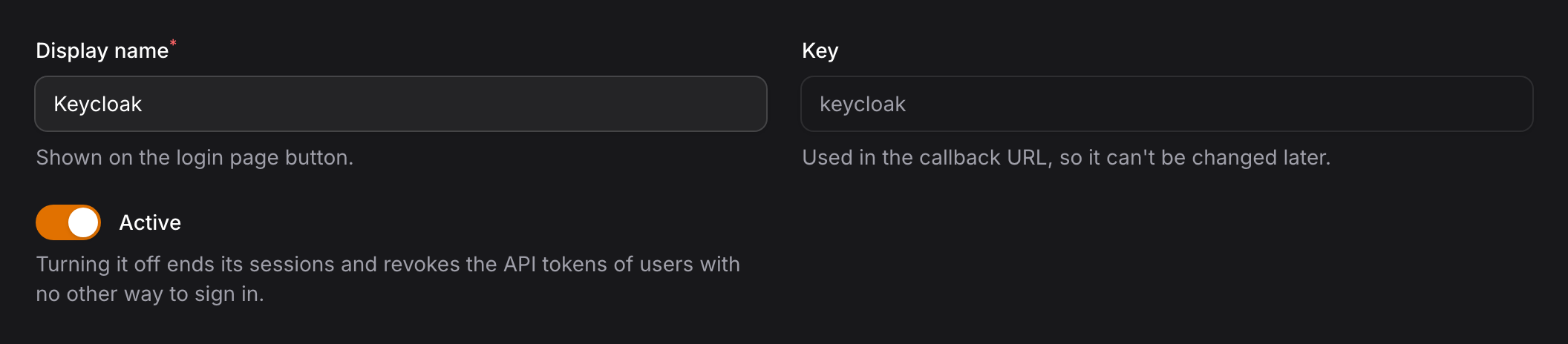
- Display name: the name of your IdP, for example
KeycloakorLog in with Microsoft. It is the full text of the provider's button on the login page, below "or continue with". - Key: a short identifier such as
keycloakorentra, made of lowercase letters, digits and dashes. It is part of the callback URL you register at the IdP, so it can't be changed after the provider is created. - Active: only active providers are shown on the login page and accept sign-ins. Leave it off until the callback URL is registered at your IdP.
Fill in a display name and key and continue with the credentials. You can save the provider at any time to see its Callback URL, which you register at your IdP exactly as shown.


Next to it, the Sign-in URL starts a sign-in with this provider, like its button on the login page. It only works while you are signed out, so open it in a private window.
The callback URL is built from APP_URL. If it starts with http:// although your users open solidtime over HTTPS, fix APP_FORCE_HTTPS and TRUSTED_PROXIES first. The IdP compares the URL character by character.
2. Register solidtime at your IdP
Follow the guide for your IdP under Provider guides. In every IdP you need:
- An application of the type web application / confidential client that uses the authorization code flow and has a client secret.
- A redirect URI: enter the Callback URL from above here, exactly as shown. IdPs also call this field sign-in redirect URI, callback URL or reply URL.
- The scopes
openid,profileandemail.
You come back with a client ID, a client secret and the IdP's issuer URL.
3. Credentials and endpoints
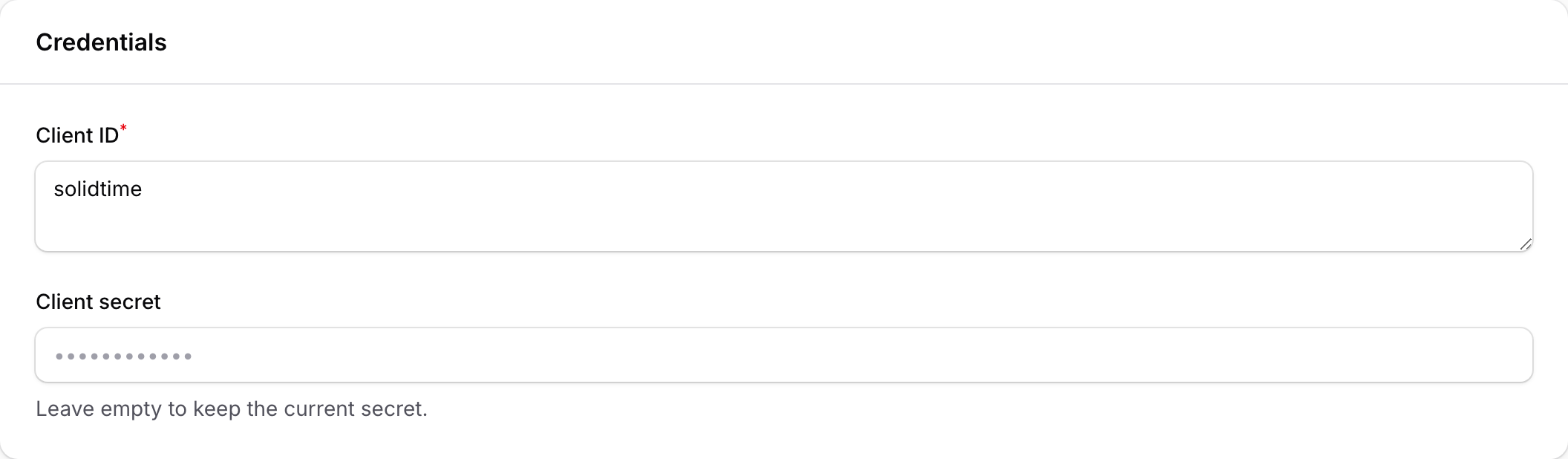
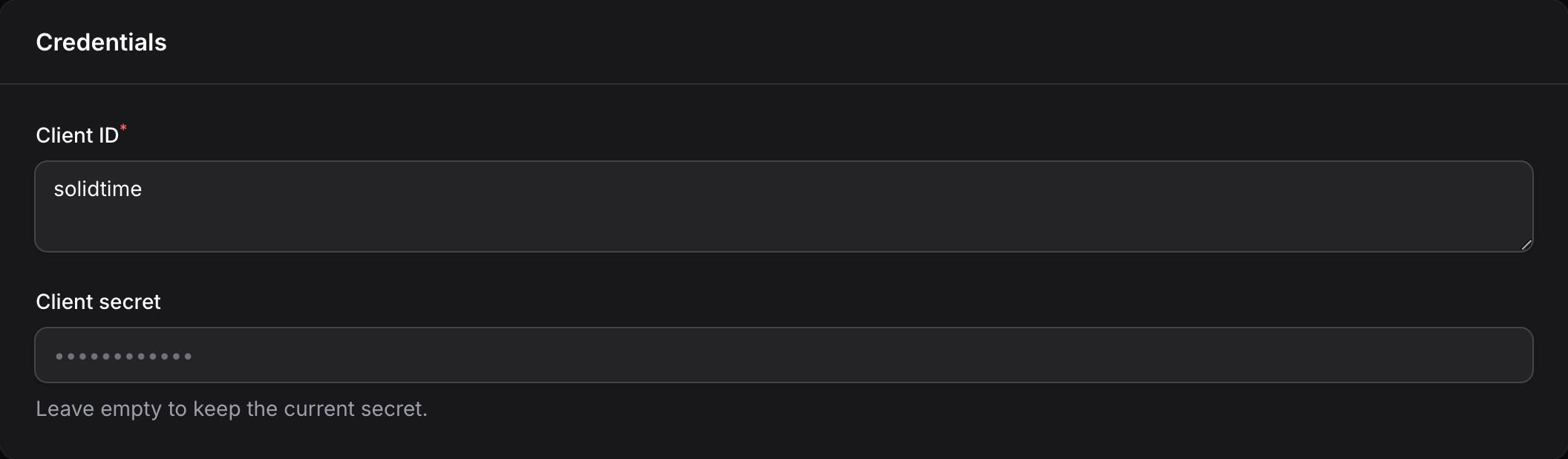
Enter the Client ID and Client secret under Credentials. The secret is stored encrypted and is never shown again; when you edit the provider later, leave the field empty to keep the current secret.
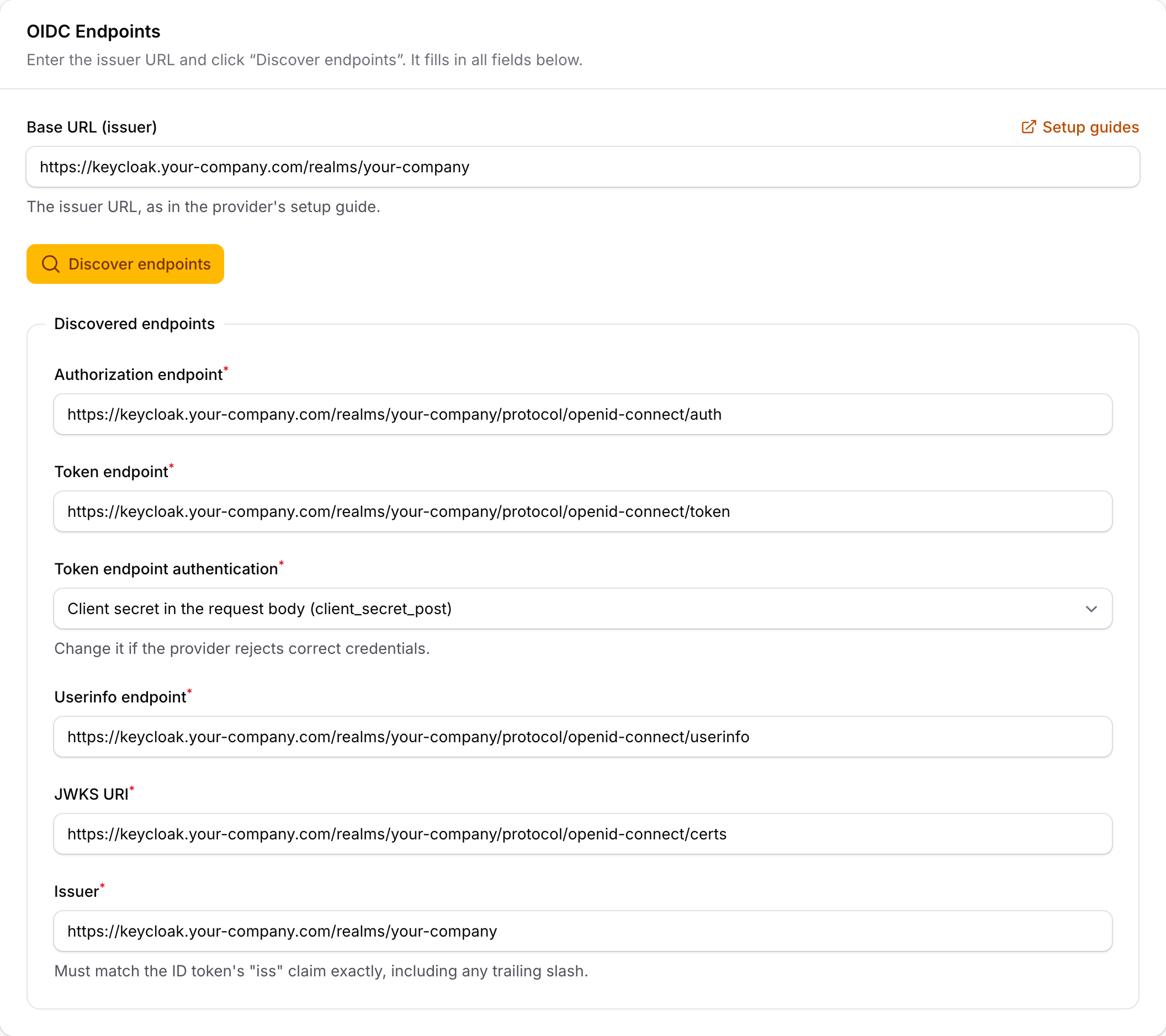
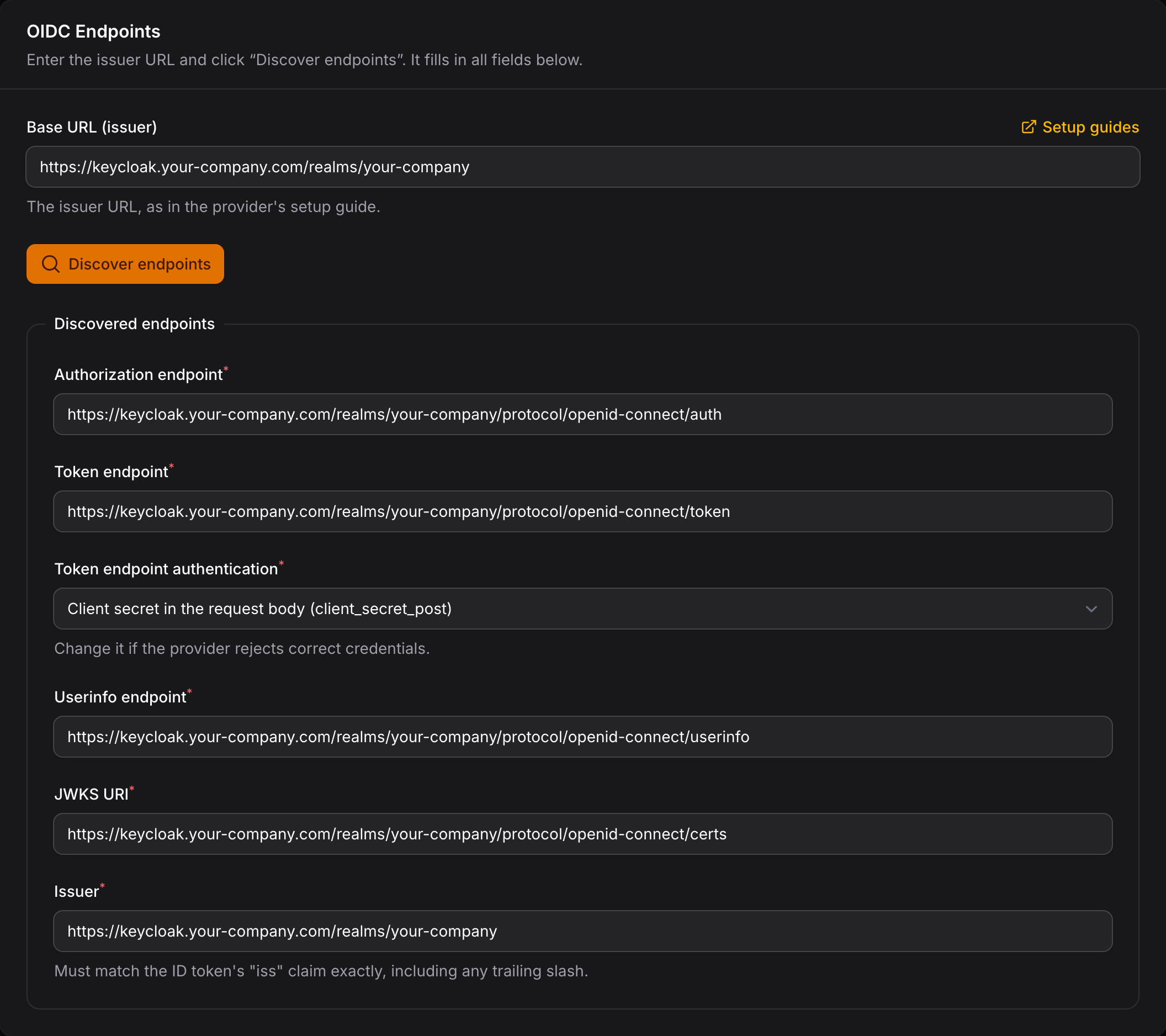
Under OIDC Endpoints, enter the issuer URL as Base URL (issuer) and click Discover endpoints. solidtime loads <issuer>/.well-known/openid-configuration and fills in the remaining fields.
What the endpoint fields mean
| Field | Description |
|---|---|
| Authorization endpoint | Where users are sent to sign in. |
| Token endpoint | Where solidtime exchanges the one-time code for tokens. |
| Token endpoint authentication | How solidtime sends the client secret: in the request body (client_secret_post) or in an HTTP Basic header (client_secret_basic). Discovery picks the body unless the IdP only supports Basic. Switch it if the IdP rejects correct credentials. |
| Userinfo endpoint | Where solidtime fetches claims that the ID token doesn't contain, such as the email address or groups at some IdPs. |
| JWKS URI | The IdP's public signing keys, used to verify the ID token signature. |
| Issuer | Compared with the iss claim of every ID token. It must match exactly, including a trailing slash. |
All endpoints must use HTTPS; plain HTTP is only accepted with SSO_ALLOW_HTTP_ENDPOINTS="true", which is meant for local testing.
Enter the issuer URL itself, not the discovery URL <issuer>/.well-known/openid-configuration that some IdPs show next to it. For Microsoft Entra ID, use the issuer URL with your tenant ID, https://login.microsoftonline.com/<tenant-id>/v2.0.
4. Behavior
The Behavior section decides who may sign in and what happens to new users. It is split into five parts. The values shown are a typical setup for "everyone in our company gets an account". Managing users explains what happens to accounts afterwards.
New accounts
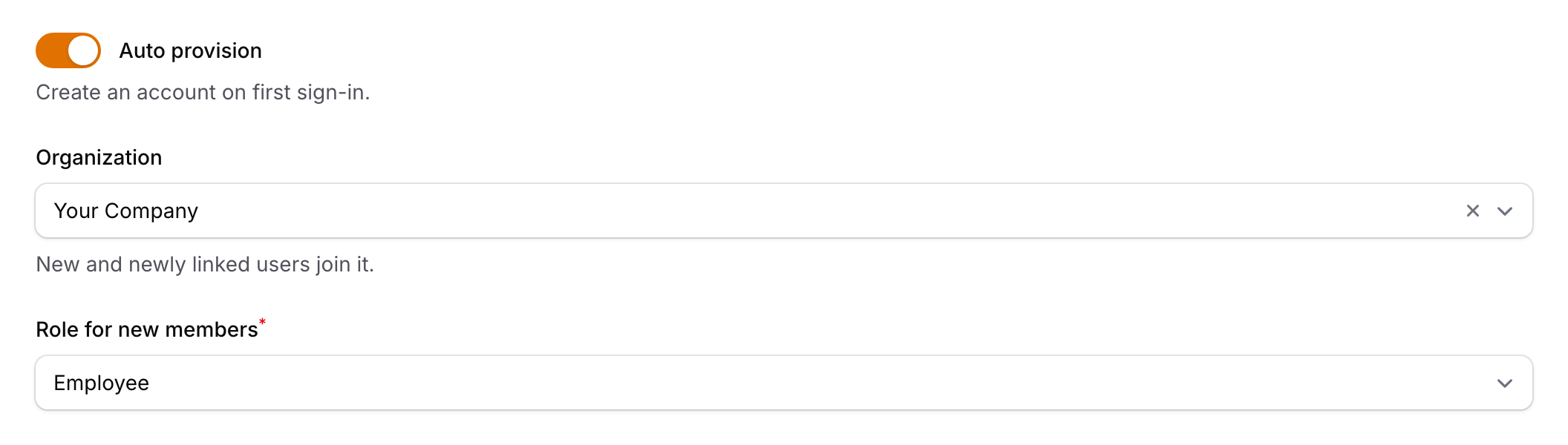
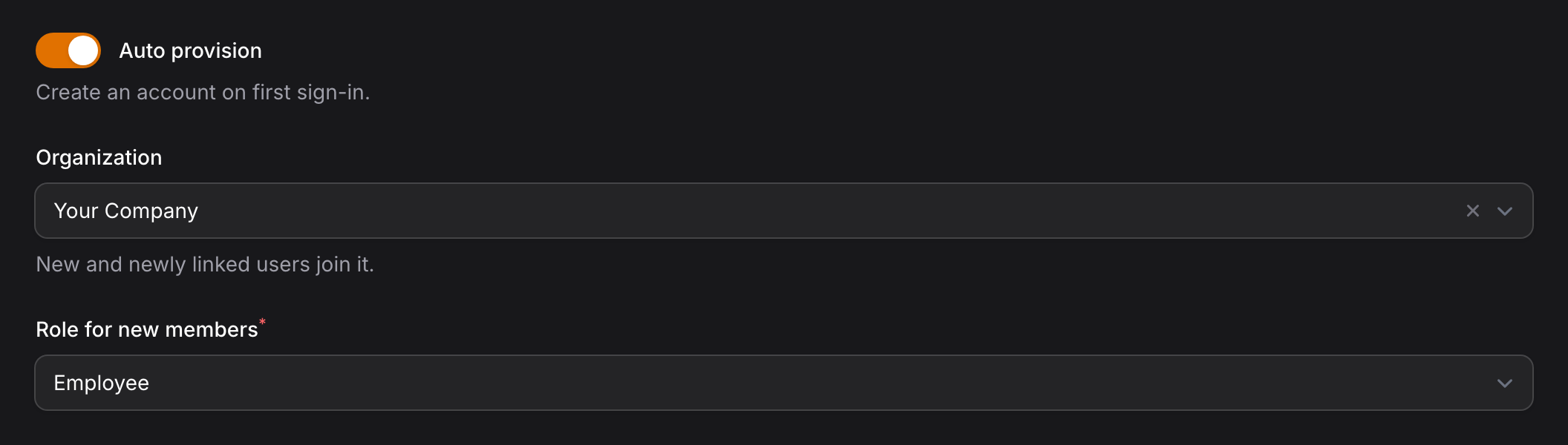
- Auto provision: creates a solidtime account on a person's first sign-in. Turn it off if only people who already have an account should sign in with this provider.
- The name and email come from the IdP. The email counts as verified, so no confirmation email is sent.
- The account has no password, so the user always signs in through SSO. A super admin can set one in the super admin panel if needed.
- Time zone, week start and currency are guessed from the IP address, like for a normal registration.
- Organization: the organization new users join, for example your company's. Users linked by email join it too.
- Role for new members: Employee or Manager. This field only appears once an organization is selected. Admin and Owner can't be assigned automatically. See Roles for what each role can do.
Whether new accounts are created, and where the users end up, depends on Organization:
| Organization | New accounts are created ... | New users ... |
|---|---|---|
| Set | always | join this organization with the Role for new members. |
| Empty | only if APP_ENABLE_REGISTRATION allows it: on lets anyone in, invite-only needs an accepted invitation for that email, off creates no accounts | join the organizations whose invitations they accepted, or otherwise get their own new organization, like after a password registration. |
In both cases, invitations the user accepted before their first sign-in are processed too.
To keep a closed instance (registration off) while new colleagues get accounts automatically, set an organization on the provider. Registration stays off for everyone else.
Email linking and verification


- Allow email-based account linking: lets a sign-in use an existing account with the same verified email, for people who already use solidtime with a password. It is off by default. Only turn it on for an IdP that reliably verifies email addresses, such as your company directory, and set Allowed email domains too.
- Accounts with two-factor authentication are never linked automatically. These users see a message asking them to log in with their password.
- The account owner gets an email that "a ... sign-in was connected to your solidtime account".
- If the provider has an organization, the linked user joins it once. If you later remove them from the organization, the next sign-in doesn't add them again.
- Trust email without "email_verified": treats every email from this IdP as verified. Only for IdPs that send neither
email_verifiednorxms_edov, and only for a directory you control, because solidtime then believes any address the IdP sends. Leave it off otherwise.
New and email-linked accounts need an email claim that the IdP marks as verified with email_verified: true. Microsoft Entra ID sends xms_edov instead (see the Entra guide), which solidtime accepts too. Users who are already linked don't need a verified email, unless the provider has Allowed email domains: an unverified email never matches them.
Allowed email domains


Only people whose verified email is on one of these domains can sign in, for example your-company.com. The match is exact: your-company.com doesn't match eu.your-company.com. Each domain can belong to one provider only; the form refuses a domain another provider already uses.
Allowed email domains and required claims are the provider's allow rules:
- If you set both, a sign-in must match both.
- They are checked on every sign-in, including for users who are already linked, so removing someone from a required group at your IdP stops their next sign-in.
- If you set neither, solidtime accepts everyone who can sign in at your IdP.
Scopes and required claims
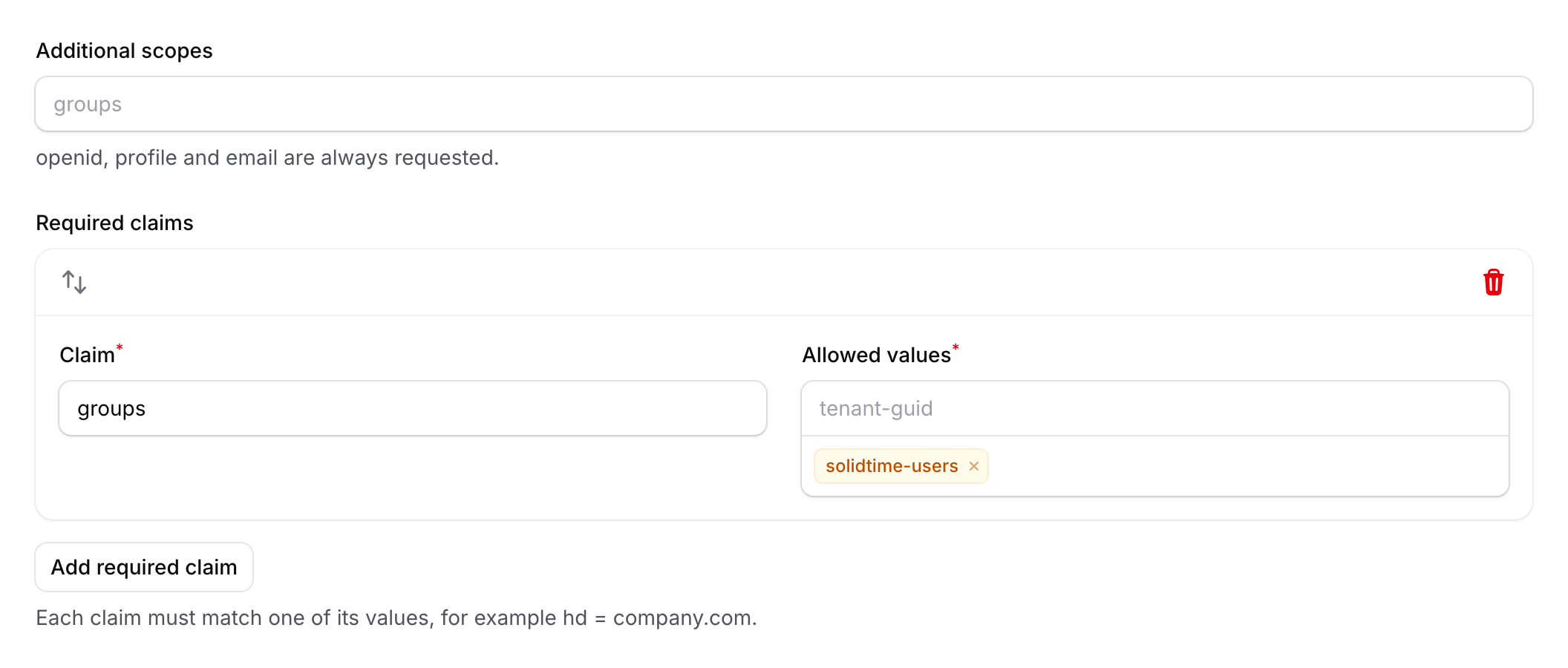
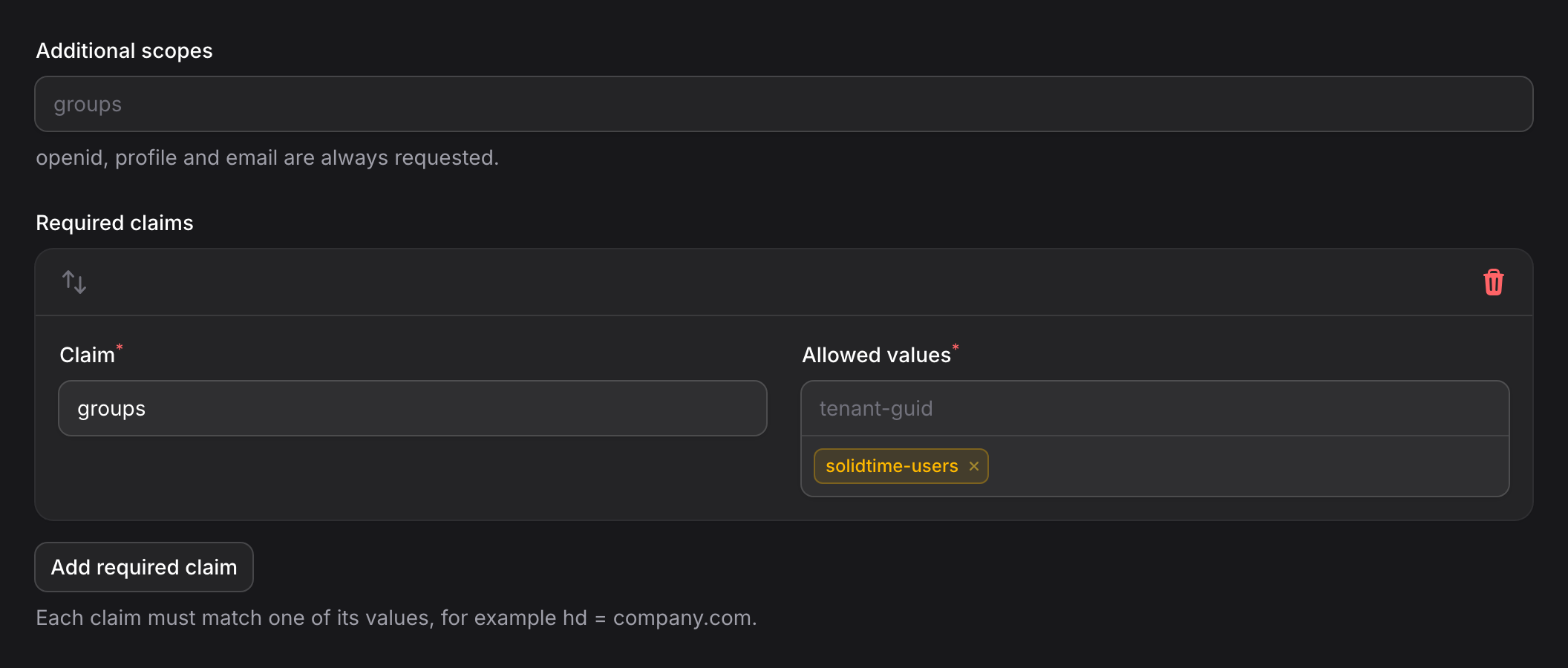
- Additional scopes: solidtime always requests
openid,profileandemail. Add a scope only if your IdP needs it to send a claim you use below. For example, Authelia only sendsgroupswhen thegroupsscope is requested. - Required claims: each claim must have one of its allowed values, for example the claim
groupswith a group that may use solidtime, such assolidtime-users.
How required claims are matched:
- Use the claim exactly as your IdP sends it: group names for Keycloak and Okta, group object IDs for Microsoft Entra ID. Comparisons are case-sensitive.
- A claim that is a list, like most group claims, matches if any entry matches. Only text values are compared, so a claim that is a number or a boolean never matches.
- Use a dotted path for nested claims, for example
realm_access.rolesfor Keycloak realm roles. A claim name that itself contains dots, such as the namespacedhttps://time.your-company.com/roles, is looked up by its full name first. - If the ID token doesn't contain the claim, solidtime asks the IdP's userinfo endpoint for it.
The provider guides show how to add a groups claim at each IdP.
Registration and Enforce SSO


These two settings change what the provider does. They are set in your environment, not in the form:
- Registration (
APP_ENABLE_REGISTRATION): applies to this provider only when Organization is empty, see New accounts. For password sign-ups, see configuration. - Enforce SSO (
SSO_ENFORCE_SSO): whether password login is turned off for everyone except super admins. See Enforcing SSO.
5. Test and activate
- Save the provider and turn on Active. The button should now appear on the login page.
- Open the login page in a private browser window and click the button. You can also copy the provider's Sign-in URL into the private window.
- Sign in at the IdP with a normal test user (not a super admin).
- You should land on the solidtime dashboard. On the provider's edit page, the user should now appear under Linked users.
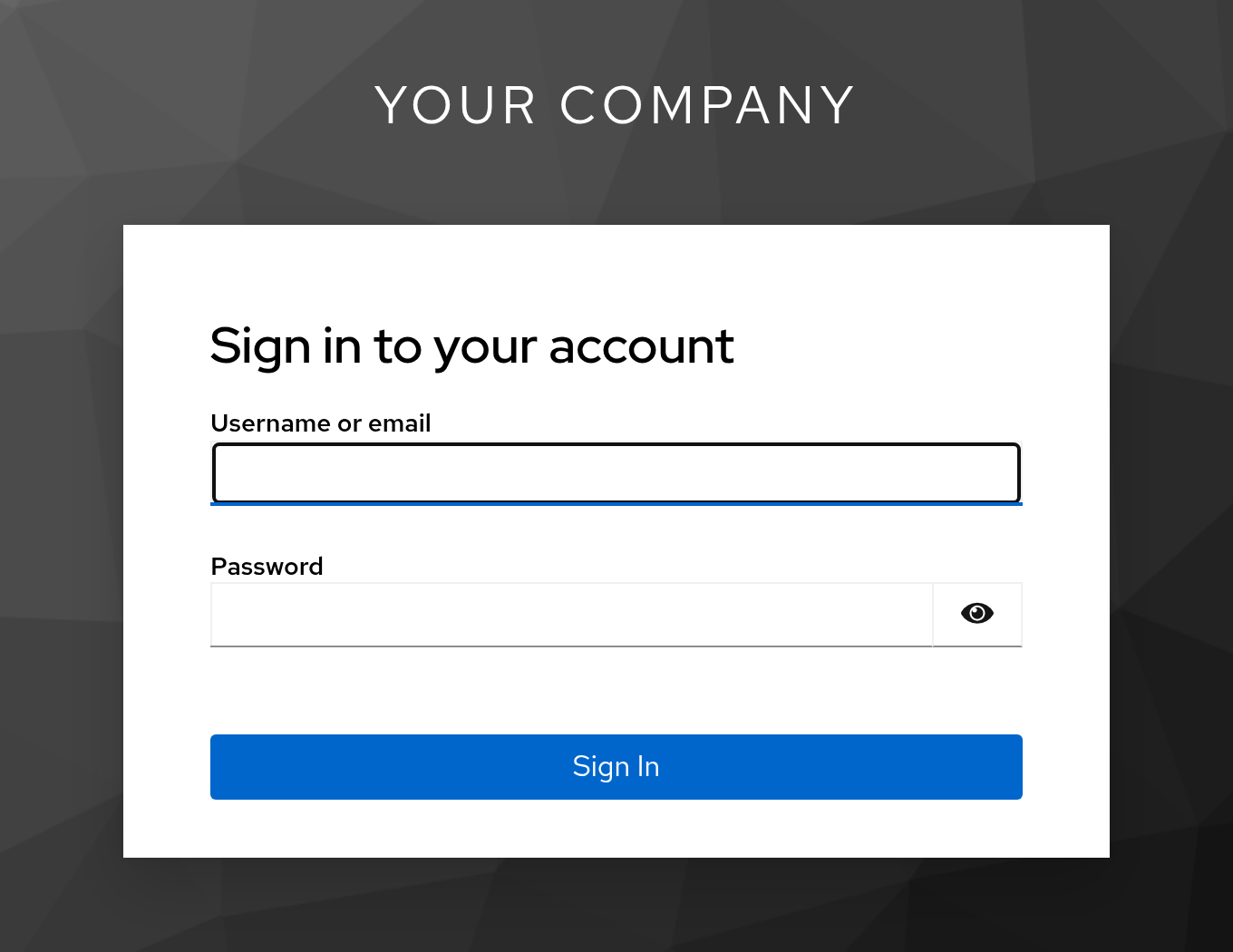
If the sign-in is refused, solidtime shows the reason on the login page, and the application log contains the details.
Changing or removing a provider
- Client secret expired or rotated: enter the new secret and save. Nothing else changes.
- Different issuer or new tenant: enter the new issuer as Base URL, click Discover endpoints and save. Existing links keep working only if the IdP keeps sending the same
subfor each user. - IdP moved its endpoints (rare): solidtime stores the endpoints and doesn't look them up again at sign-in, so click Discover endpoints again and save.
- Deactivate: turn off Active. The button disappears, sessions started through this provider end, and users who have no other way to sign in also lose their API tokens. The links are kept, so you can turn it on again.
- Delete: deletes the provider and its links. The confirmation shows how many users have no other way to sign in and would be locked out; deactivate it instead to keep their links.
Every change to a provider is recorded in the audit log, without the client secret.