Goals
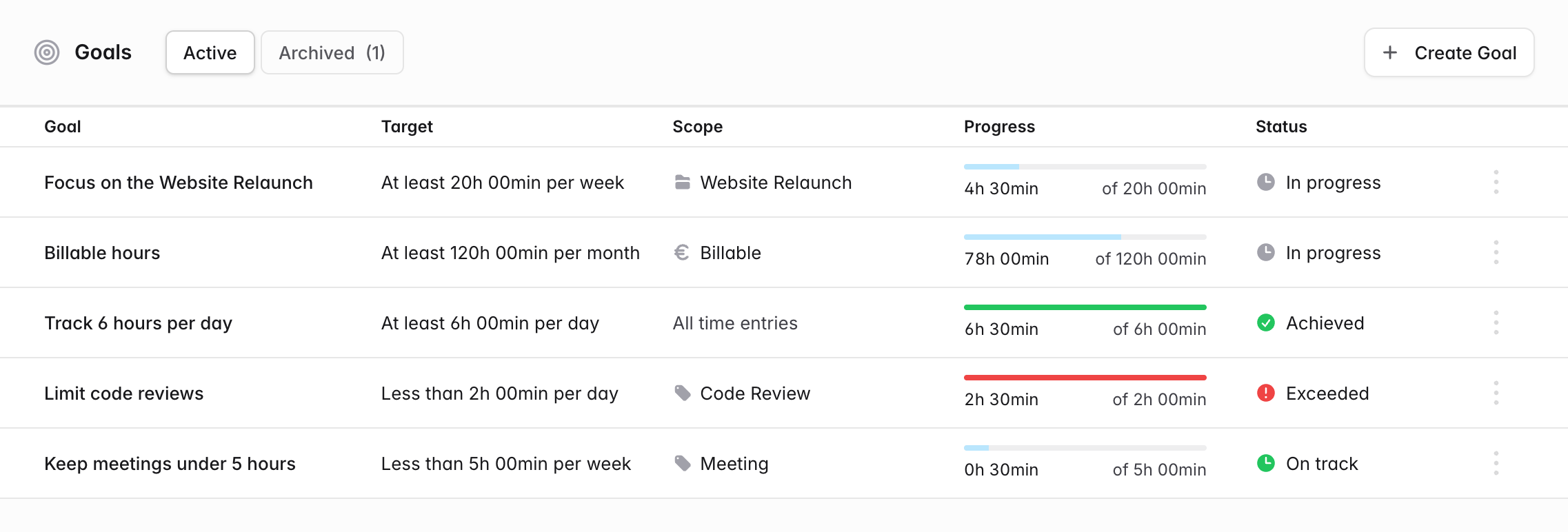
Goals let you set yourself a time target and follow your progress towards it, for example track at least 6 hours per day, spend 20 hours per week on a project or keep meetings under 5 hours per week. solidtime counts your tracked time against the target in the current day, week or month and shows you at a glance whether you're on track.
Goals are personal: only the member who created a goal can see, edit, or delete it inside of solidtime.
Open them from Goals in the left sidebar, or type Goals into the command palette.
Goals are stored as part of the organization, so they can be included wherever organization data is processed, for example in organization exports or, on self-hosted instances, in the super admin panel.
Creating a goal
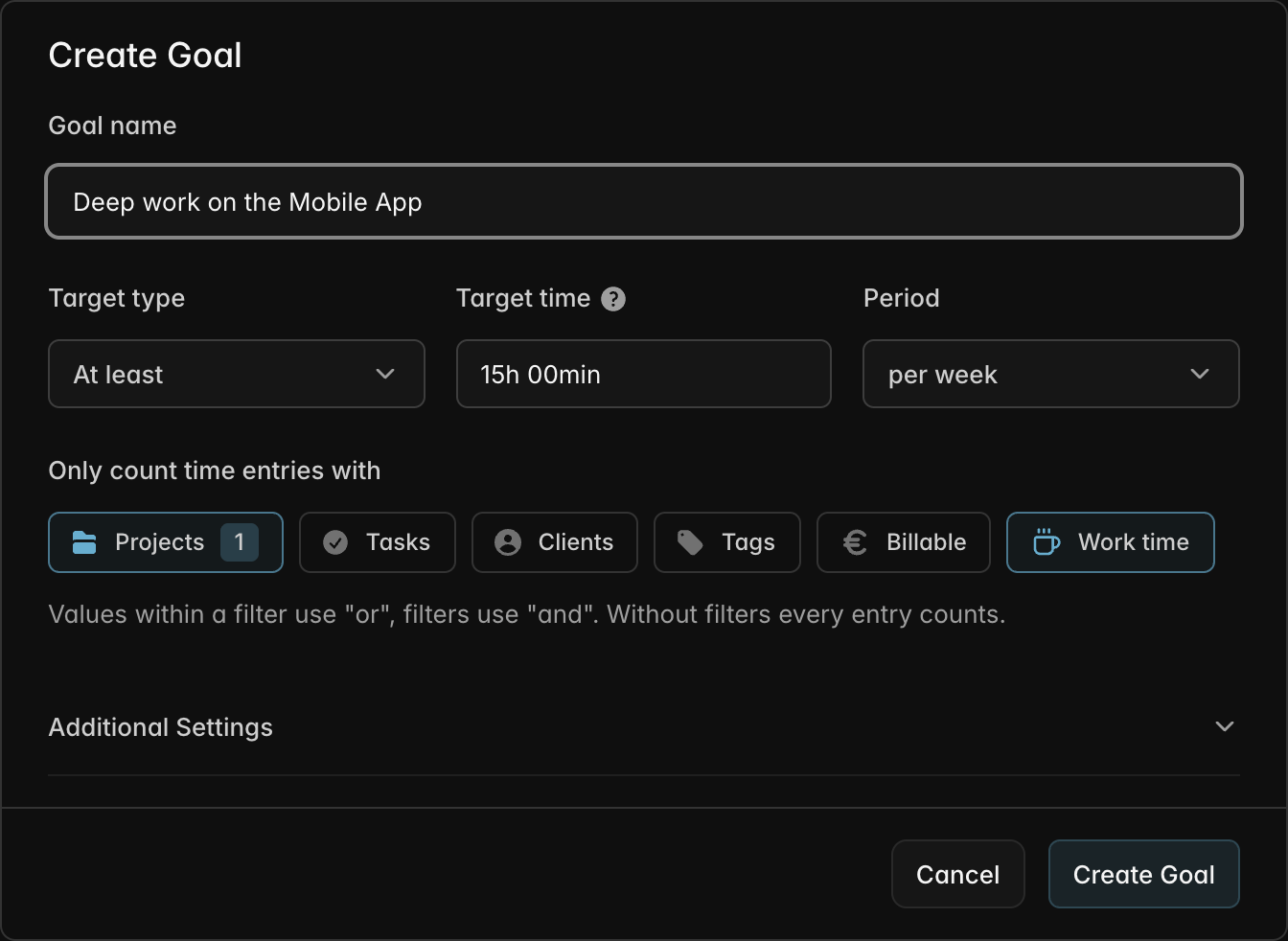
Click Create Goal in the top-right corner of the Goals page (or run Create Goal from the command palette) and fill in the form:
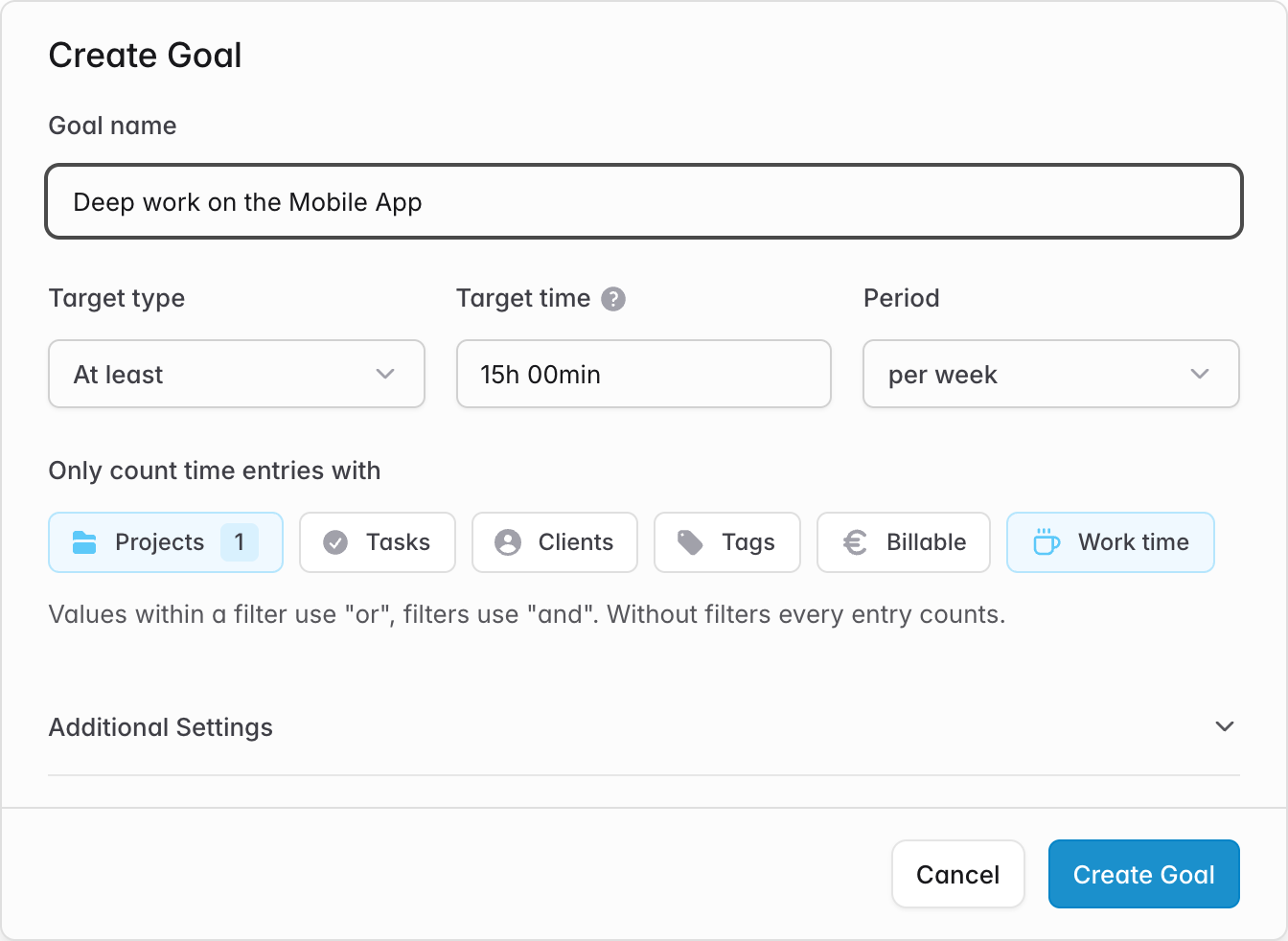
- Goal name: a name that tells you what the goal is about, e.g. Deep work on the Mobile App.
- Target type: whether you want to reach the target or stay below it.
- At least: the goal is reached once you've tracked the target time or more. Use it for things you want to do more of, like billable hours or focus time.
- Less than: the goal holds as long as you stay below the target time. Use it for things you want to limit, like meetings.
- Target time: the amount of time, e.g.
15h,2h 30m, or1.5(hours). - Period: per day, per week, or per month. Progress starts again from zero at the beginning of every period.
Additional settings
Under Additional Settings you can set the timezone and the start of the week of the goal. They decide when a day, week, or month of the goal begins and ends, and default to the settings in your profile.
Time entry filters
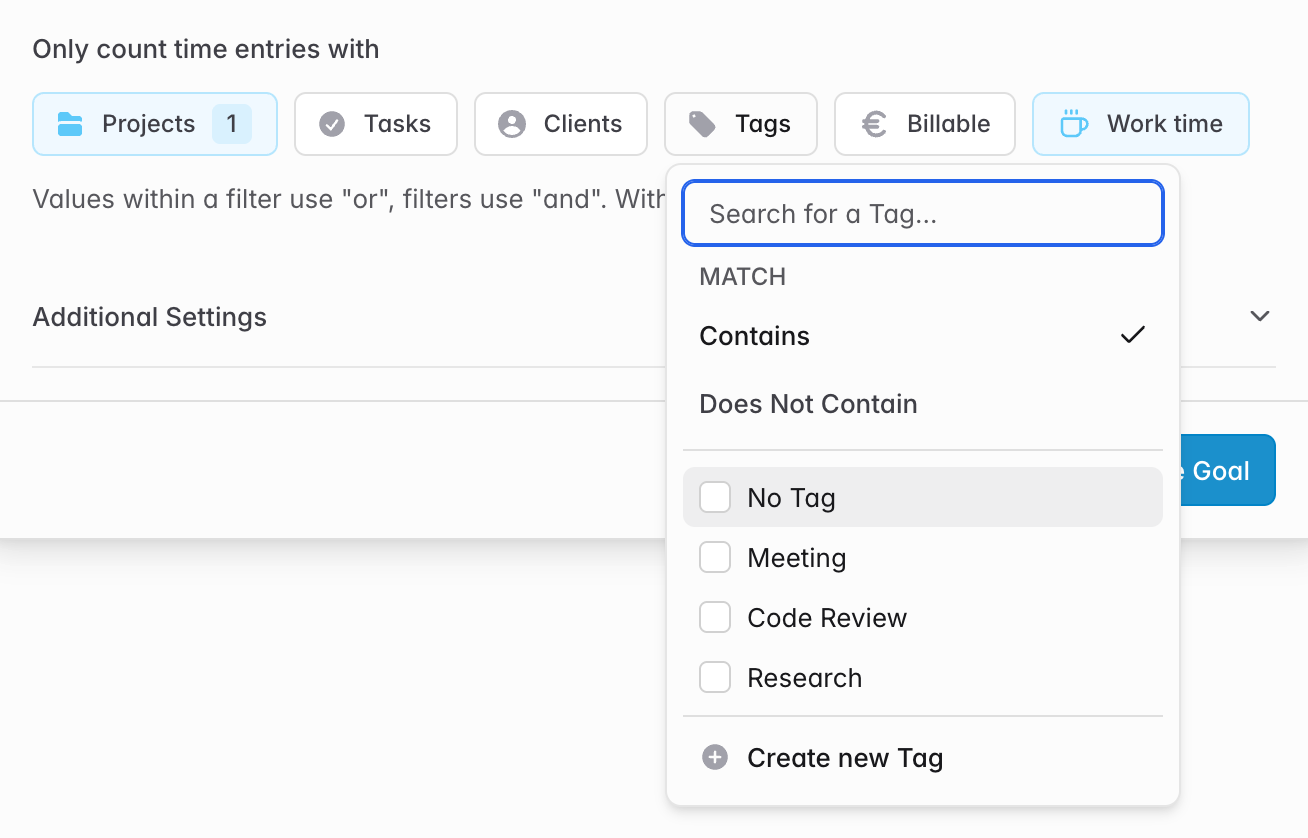
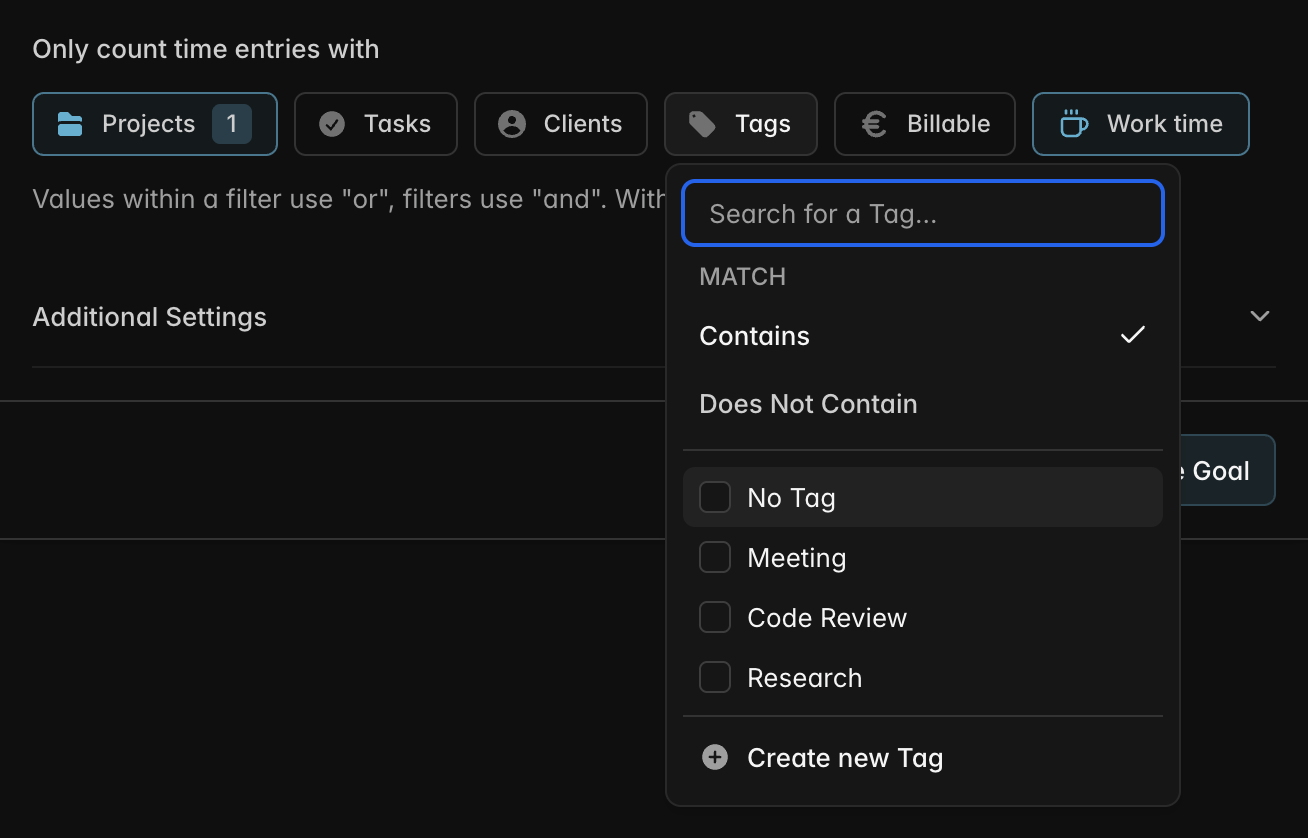
By default every one of your time entries counts towards a goal. With the filters under Only count time entries with you can narrow a goal down to the time you actually care about:
| Filter | Counts time entries that… |
|---|---|
| Projects | belong to one of the selected projects. Select No Project for entries without one. |
| Tasks | belong to one of the selected tasks. Select No Task for entries without one. |
| Clients | belong to a project of one of the selected clients. Select No Client for entries without one. |
| Tags | have one of the selected tags (Contains), or none of them (Does Not Contain). Select No Tag for entries without tags. |
| Billable | are billable, non-billable, or both (the default). |
| Type | are work time, breaks, or both. Only shown when break tracking is enabled; new goals count work time only. |
Values within one filter are combined with "or", different filters with "and". For example, a goal with the projects Website Relaunch and Mobile App and the filter Billable counts billable time on either of the two projects.
Progress and status
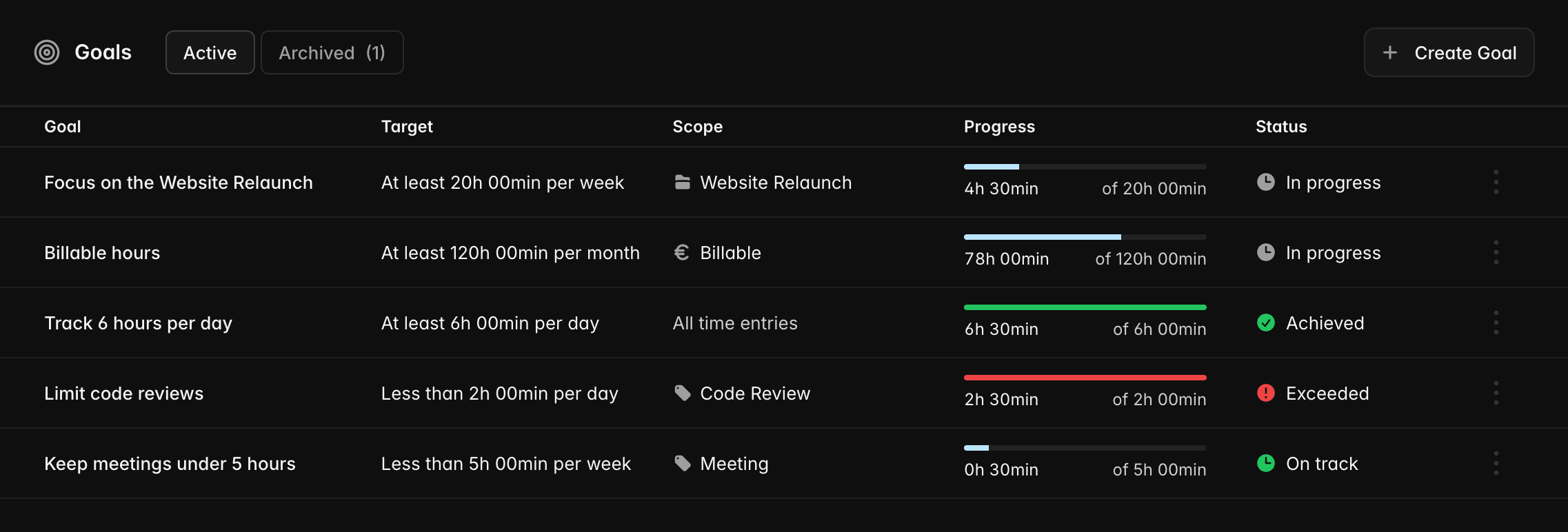
The Goals page shows every active goal with its target, its scope (the filters it uses, or All time entries), and the progress in the current period. The progress bar fills up as you track time, and the number below it shows the tracked time against the target.
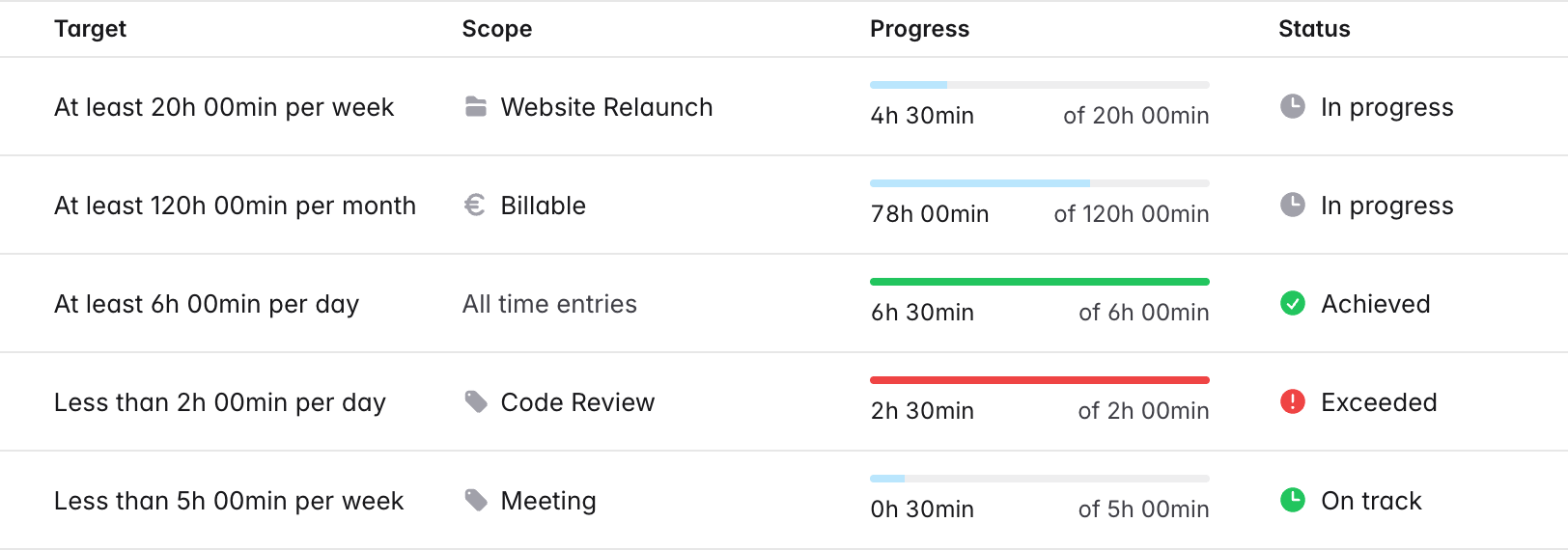
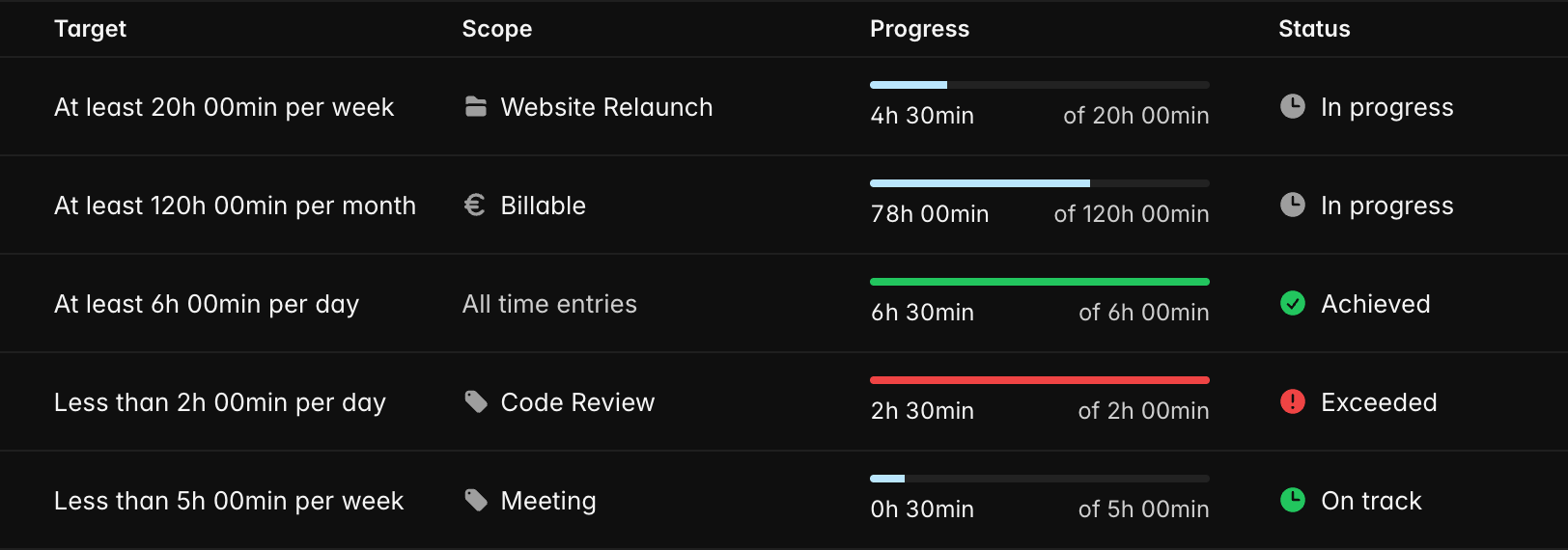
Each goal has one of four statuses for the current period:
| Status | Target type | Meaning |
|---|---|---|
| In progress | At least | You haven't reached the target yet. |
| Achieved | At least | You've tracked the target time or more. |
| On track | Less than | You're still below the target. |
| Exceeded | Less than | You've reached or gone over the target. |
A time entry counts towards the period its start lies in, the same way the reporting assigns entries to days.
Editing, archiving, and deleting goals
Open the ⋮ menu at the end of a goal's row, or right-click the row, to manage the goal:
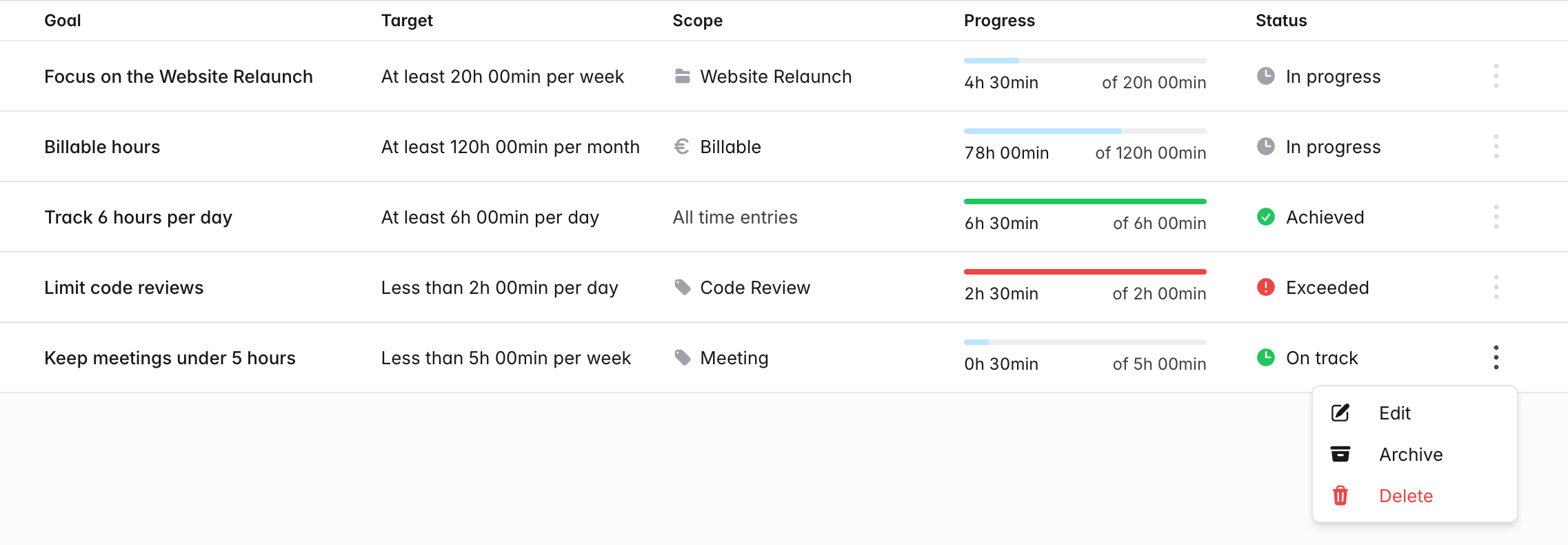
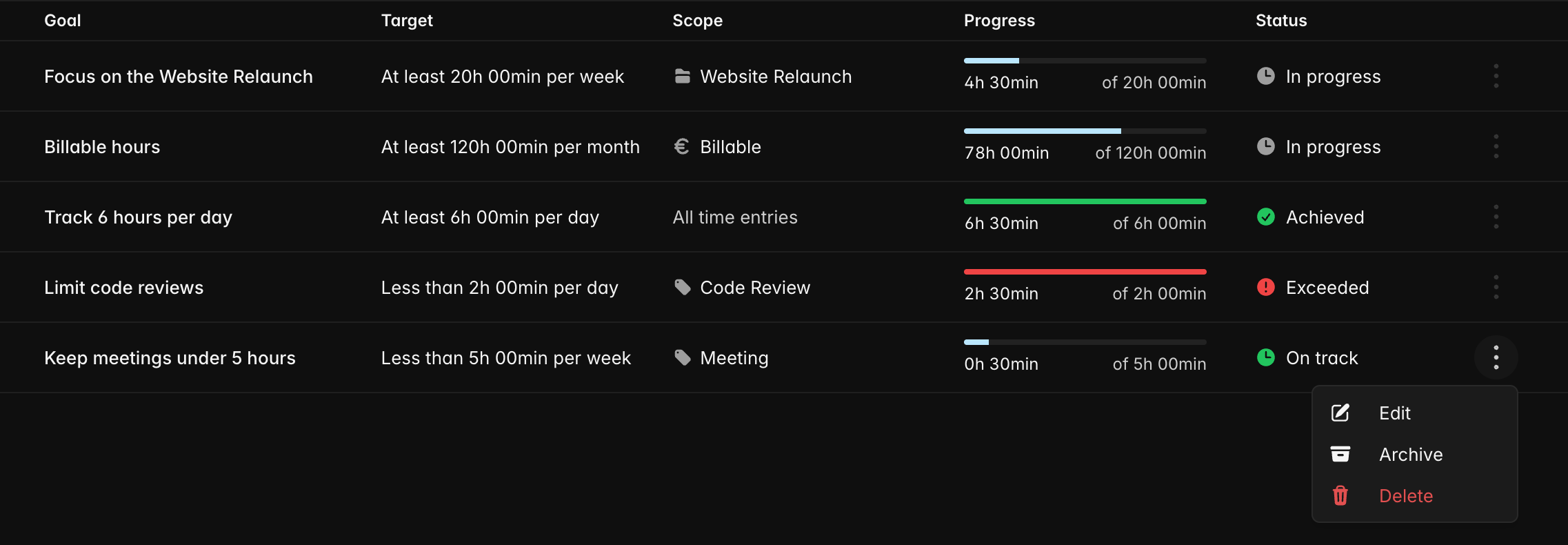
- Edit opens the goal in the same form as when creating it. Changes to the target, period, or filters apply to the progress right away.
- Archive moves the goal to the Archived tab at the top of the page. Archived goals are no longer shown with your active goals, but nothing about them is lost: use Unarchive to bring a goal back.
- Delete removes the goal permanently. Your time entries are not affected.
On the free plan of solidtime Cloud, the number of goals per organization is limited, counting the goals of all members. Archived goals count towards the limit too, so delete goals you no longer need to make room for new ones. Once the limit is reached, Create Goal shows the upgrade options instead of the form. Self-hosted instances have no goal limit.
API
Goals can also be managed through the API. See the API reference for all goal endpoints.