Breaks
Breaks let you track pauses between your work time entries. Unlike work time entries, breaks have no project, tags, or billable status. Break time is counted separately from work time everywhere: dashboard statistics only count work time, day totals show breaks separately, and reports can include or exclude them.
Enabling breaks
Break tracking is disabled by default. An owner or admin can enable it in the organization settings:
- Open the organization switcher in the top-left corner.
- Go to Organization Settings.
- Check Allow tracking breaks and click Save.


Once enabled, break controls appear in the time tracker, the timesheet gets a dedicated Break row, and the calendar and reporting pick up breaks as well.
Taking a break from the timer
Take a break
While a timer is running, a coffee-cup Take a break button appears next to the stop button. Clicking it stops the current work entry and immediately starts a break entry, so no time is lost between the two.


Resume work
While the break is running, the tracker shows an On break state. One click on Resume ends the break and starts a new work entry with the interrupted entry's description, project, and other details restored, so getting back to work is a single click.


You can also end the break with the regular stop button if you don't want to resume the previous work right away.
Start a break without a running timer
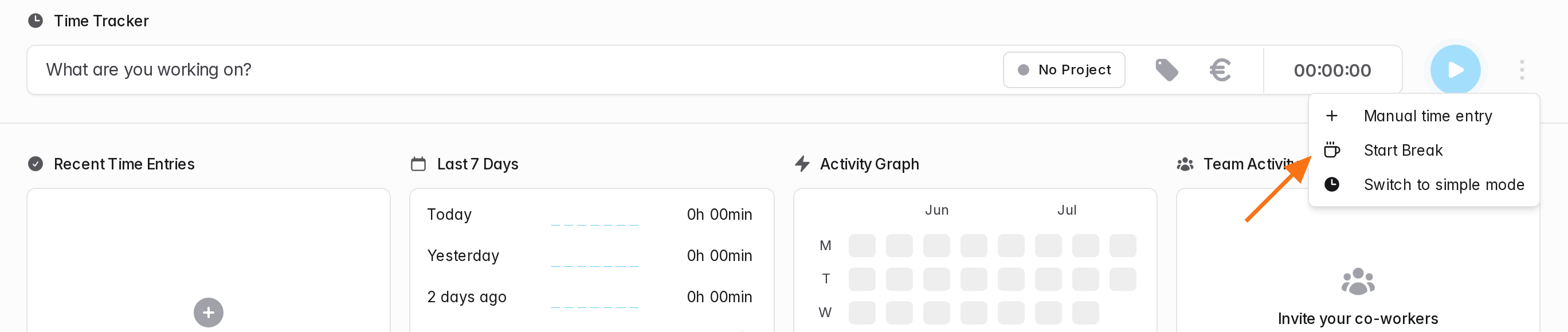
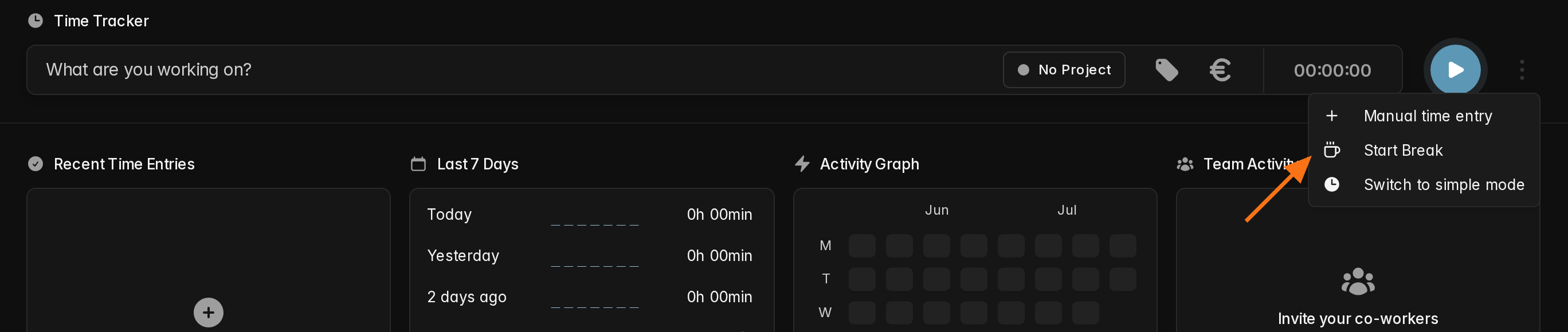
A break doesn't have to start from a running timer: Start Break in the tracker's options menu starts a break while no timer is running, for example when you stopped the timer but actually wanted to take a break.
Breaks on the Time page
Break entries appear alongside your other entries, marked with a coffee-cup Break label. The day header shows the day's break time separately from the work total, so a day reads like 30min break · 5h 00min. A break that sits far away from your work entries is flagged with a warning sign, see Misaligned breaks.


Breaks in the timesheet
With breaks enabled, the timesheet always shows a pinned Break row at the bottom of the grid. Enter a duration into a break cell just like any other cell.
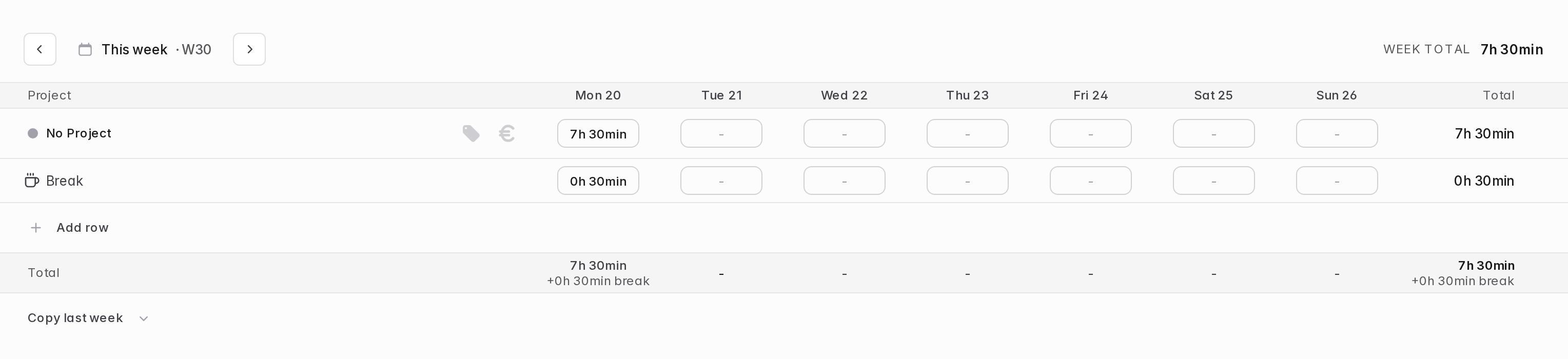
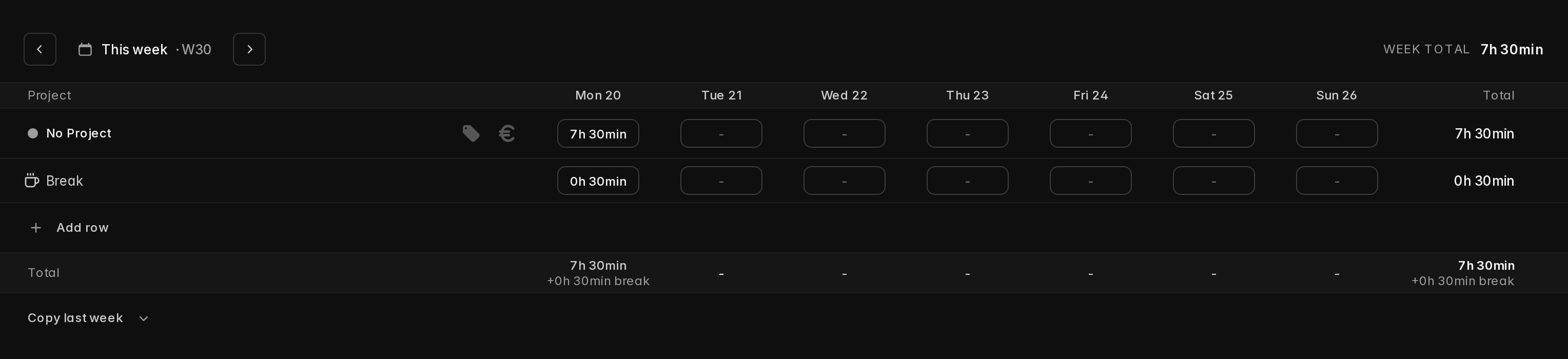
Copy last week copies break entries along with everything else.
Because a break should sit between work entries, the timesheet places it for you:
- It automatically looks for a free gap between that day's work entries where the break stays within 30 minutes of work on both sides, and centers the break there.
- When no such gap exists, the break is placed in any gap big enough to hold it, directly after the work entry before it.
- When no gap can hold the break at all, a placement dialog opens to let you place the break manually.
Manually placing breaks
The placement dialog shows the suggested position and lets you adjust the break's time before anything is saved:
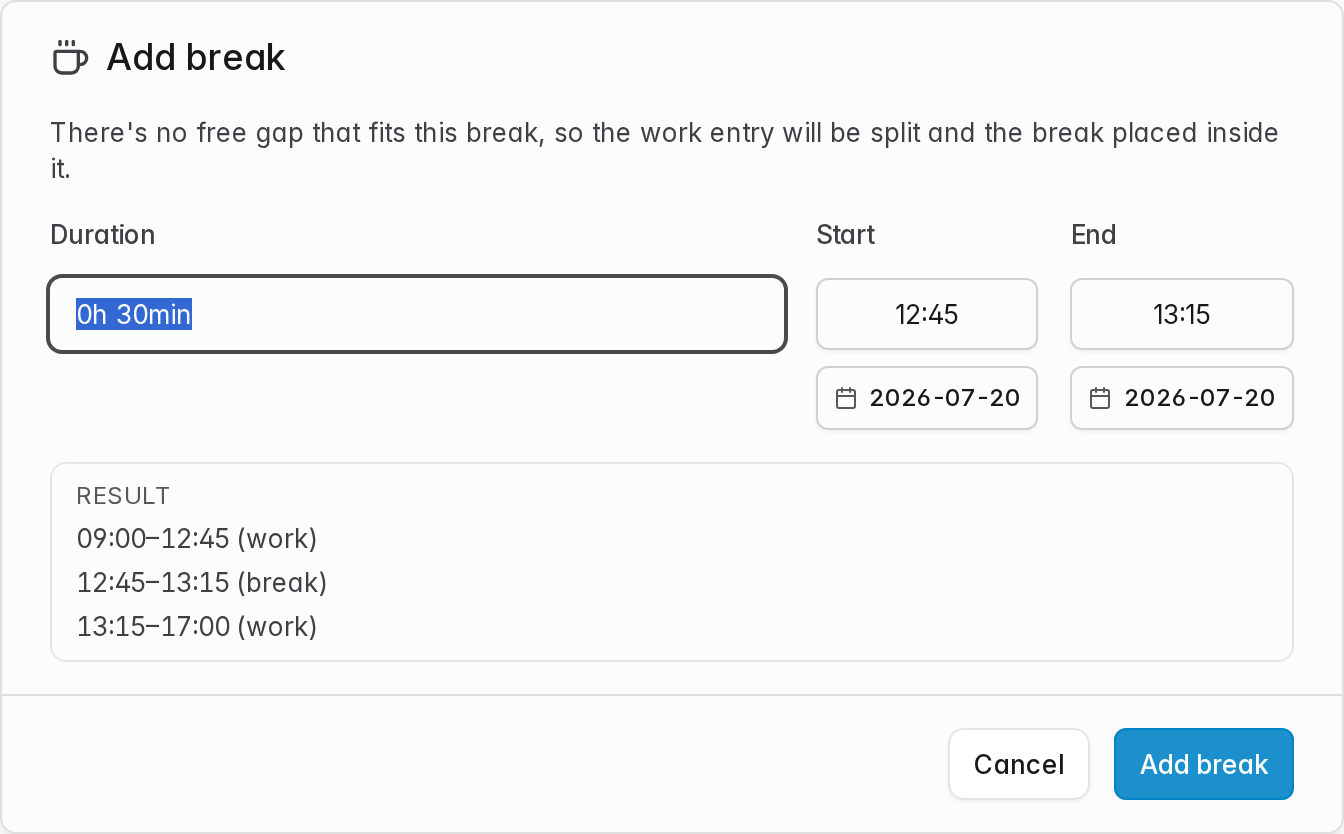
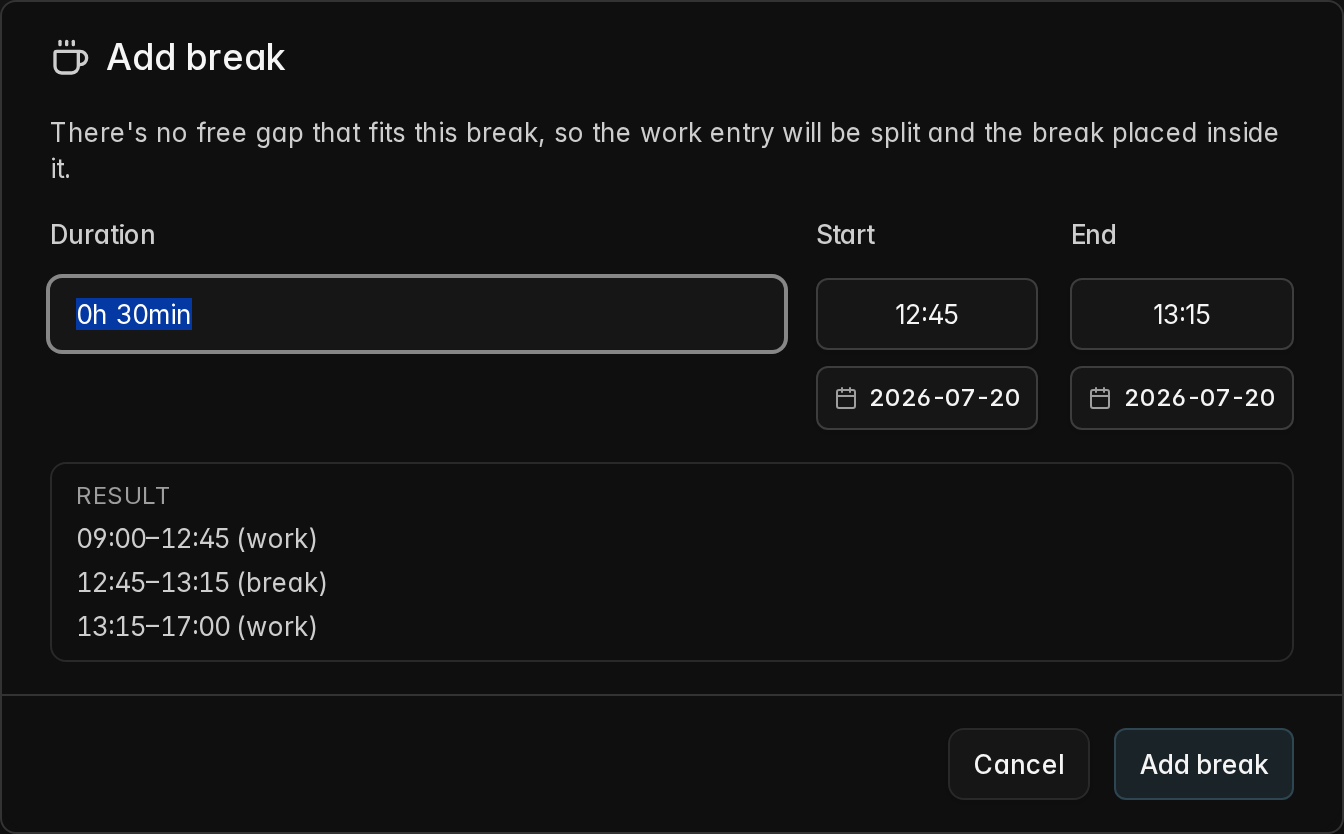
- With a single work entry on the day, the dialog splits it in two and puts the break in between. You can adjust the break's time; it must lie inside the work entry, leaving at least a minute of work on each side.
- With several work entries, the dialog shifts the surrounding entries just enough to open a slot, and shows exactly which entries move before you confirm. If the chosen time would leave the break misaligned, the dialog warns you up front.
Breaks in the calendar
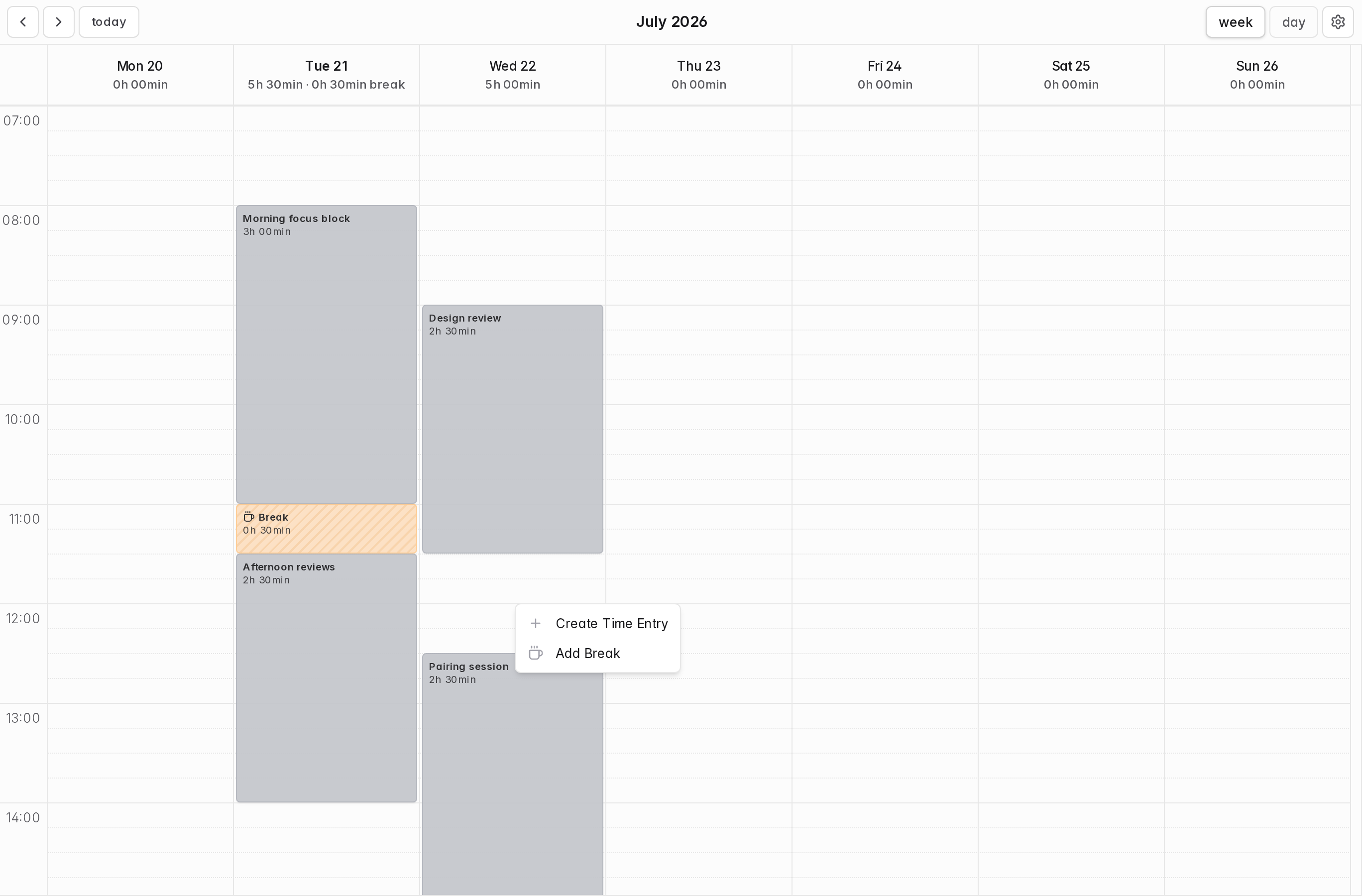
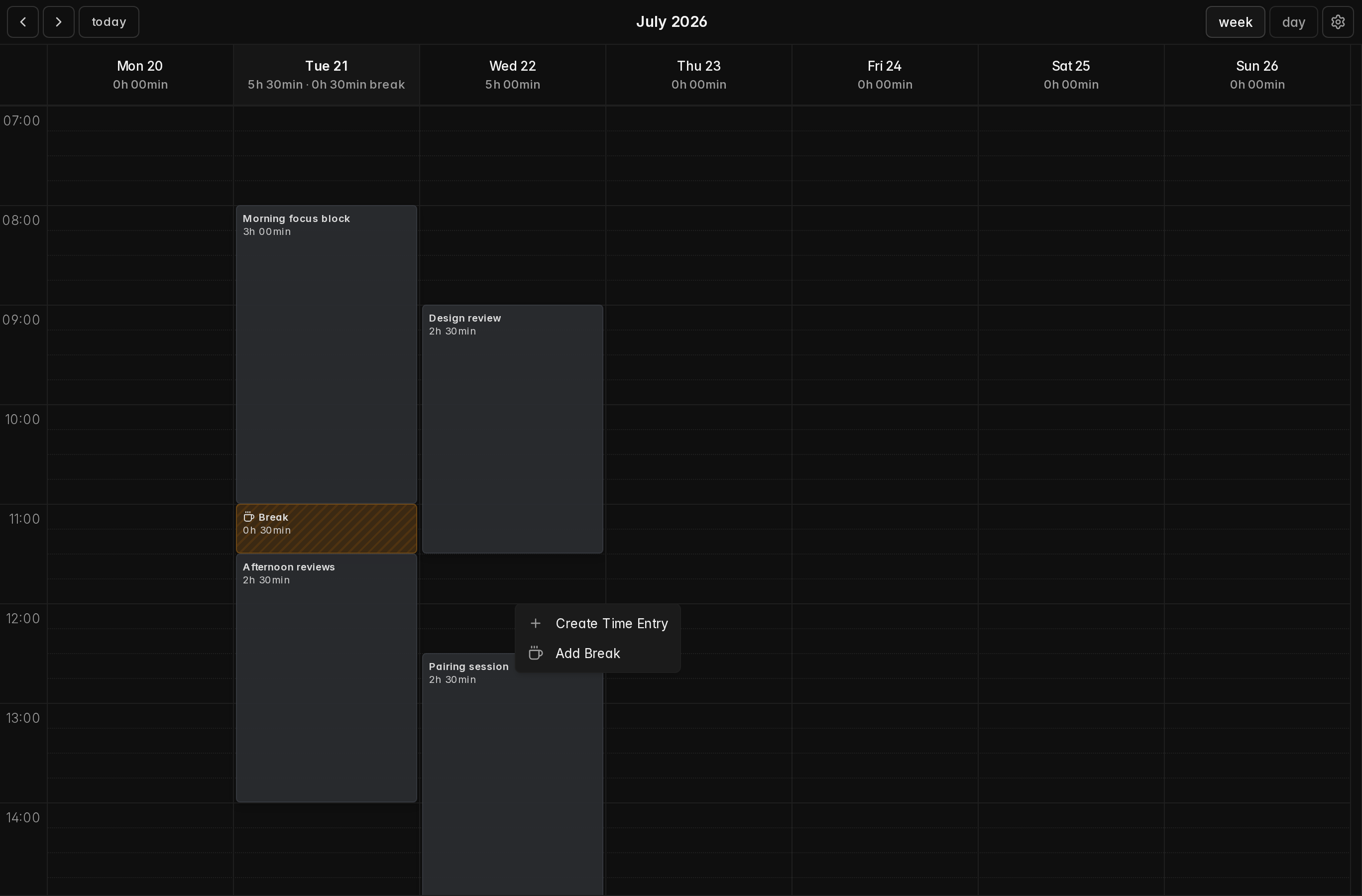
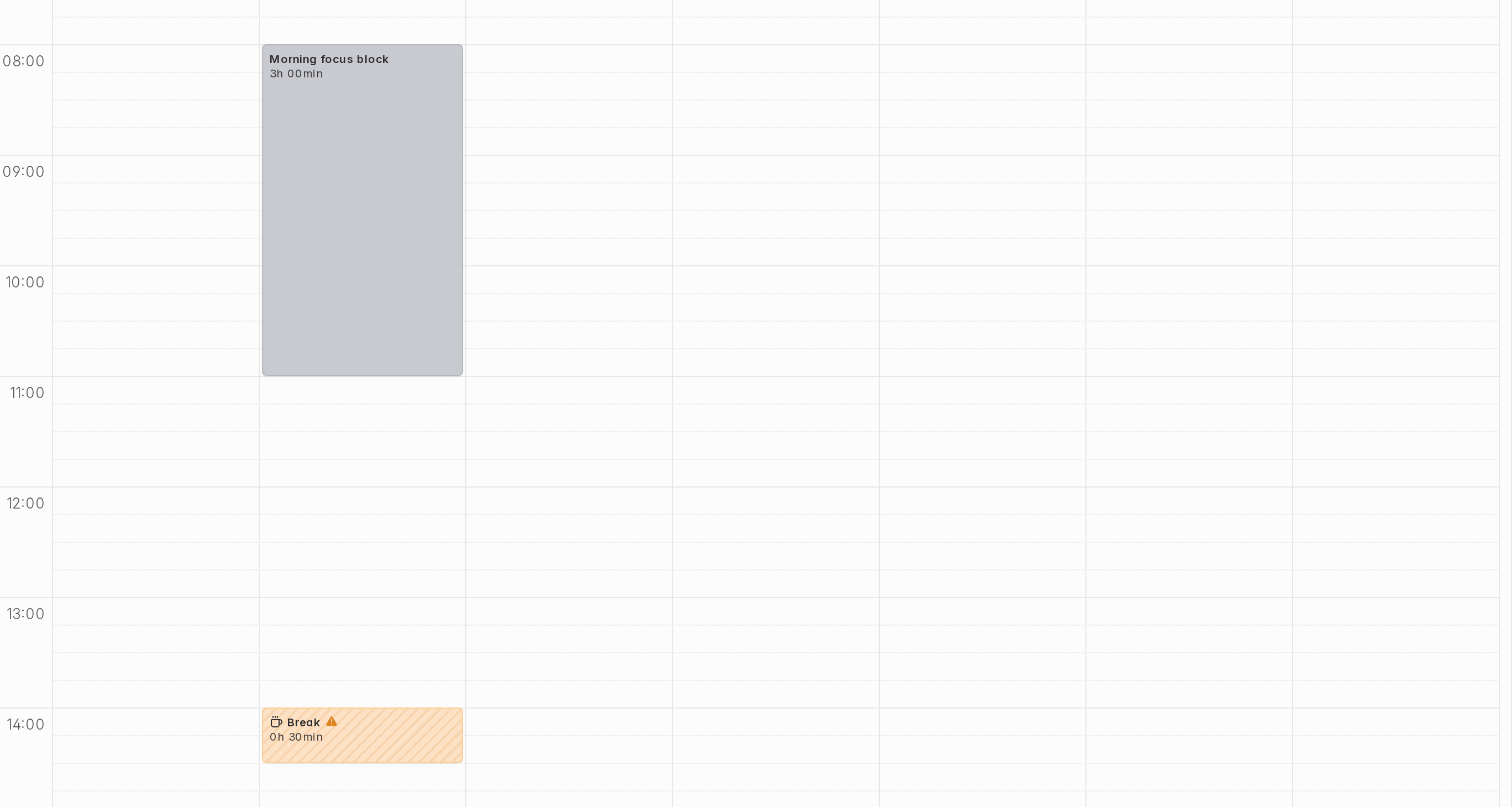
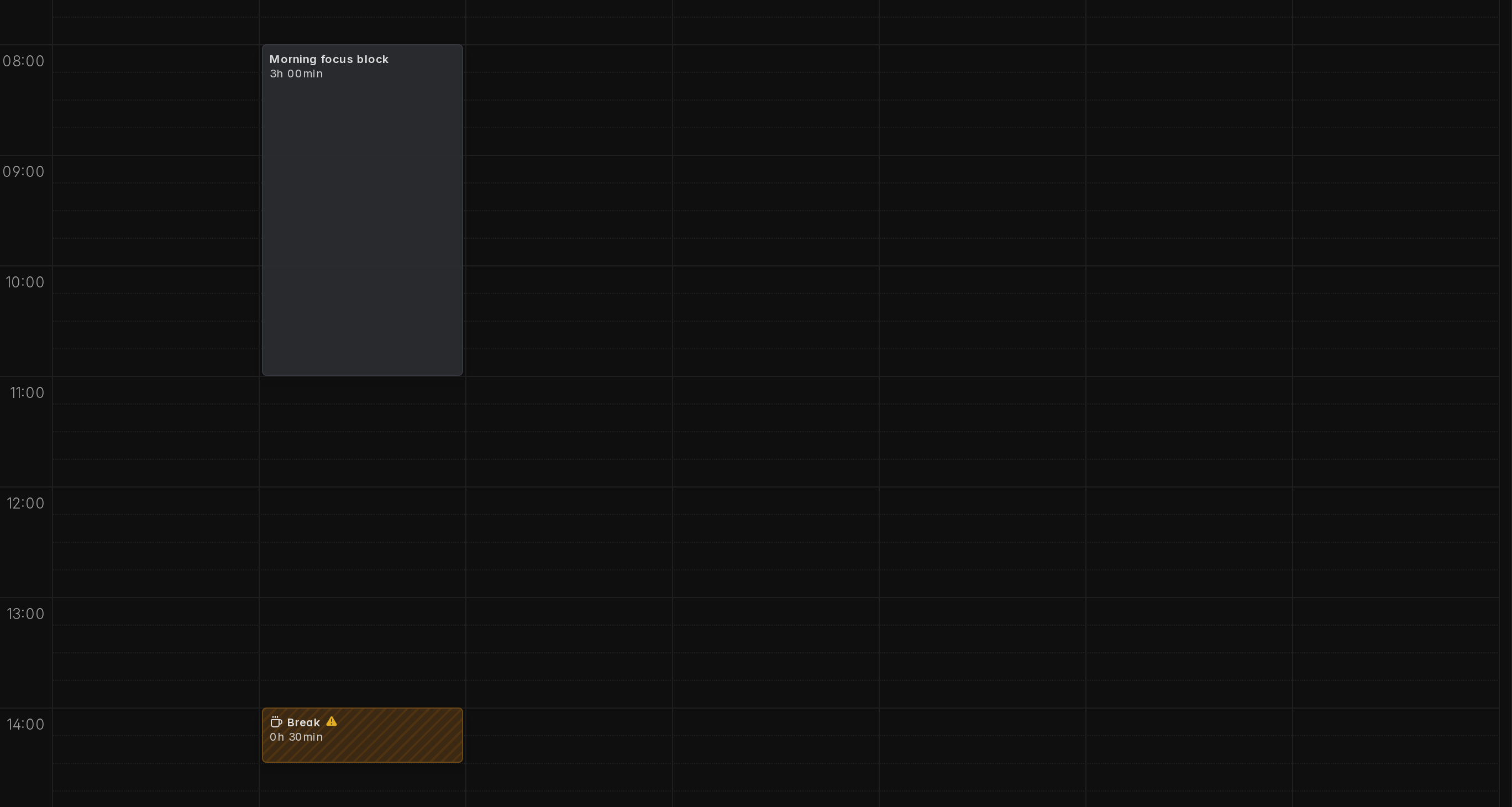
In the calendar, right-click a free spot and choose Add Break to create a break at that time. When you right-click in a gap between two time entries, the suggested break is prefilled to fill the space between them exactly. Break entries are drawn with a hatched texture so they can't be confused with a project color, and misaligned breaks carry a warning sign. The day headers show the day's break time next to the work total. Otherwise breaks behave like any entry: drag to move, resize to adjust, right-click to edit, duplicate, split, or delete.
Misaligned breaks
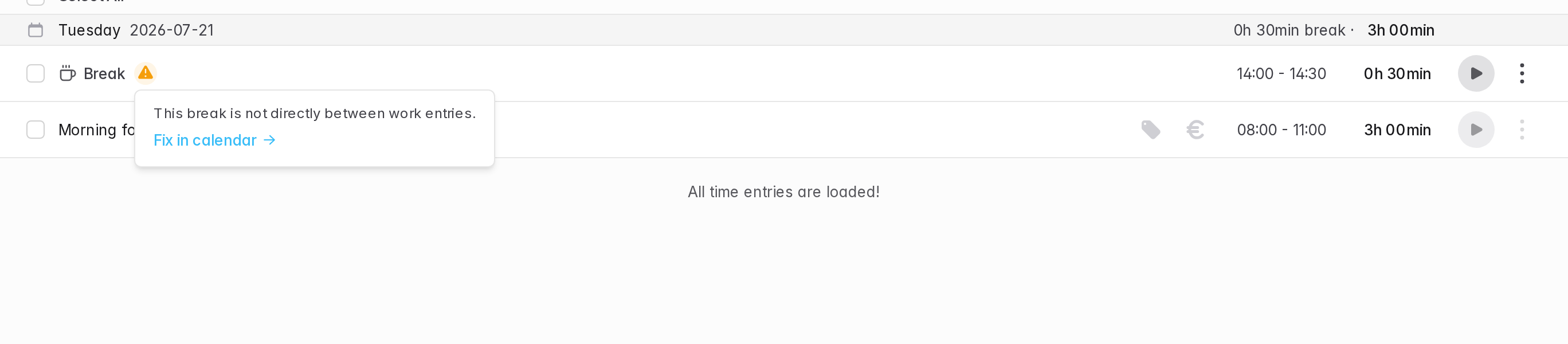
A break records a pause between work, so solidtime expects every break to sit directly between work entries. A break counts as misaligned when it is more than 30 minutes away from the nearest work entry on either side, or when one side has no work at all.
This is a hint, not an error: nothing is blocked and the break is saved either way. The check helps you spot breaks that drifted away from your work, for example after editing or deleting the entries around them. It is recalculated from your current entries, so correcting the times clears the flag on its own.
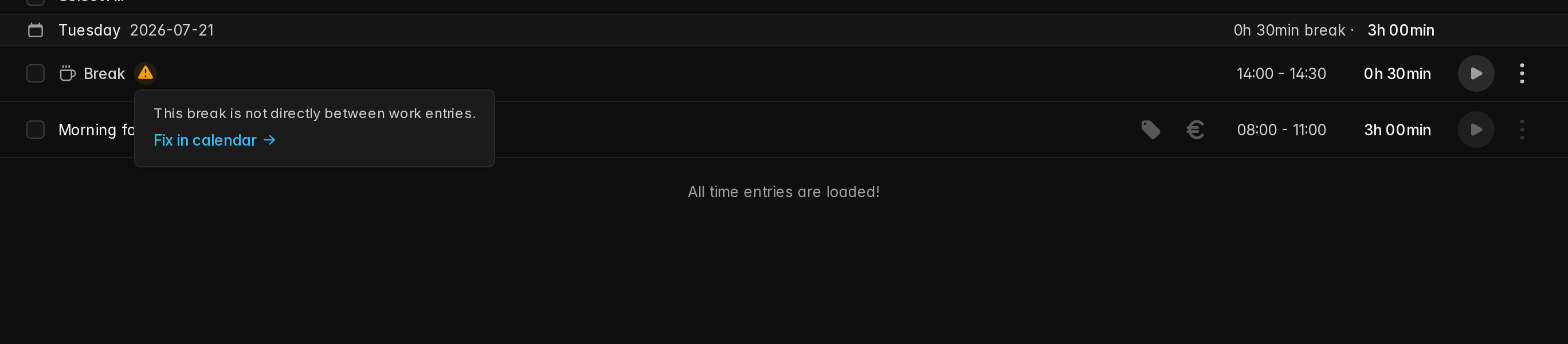
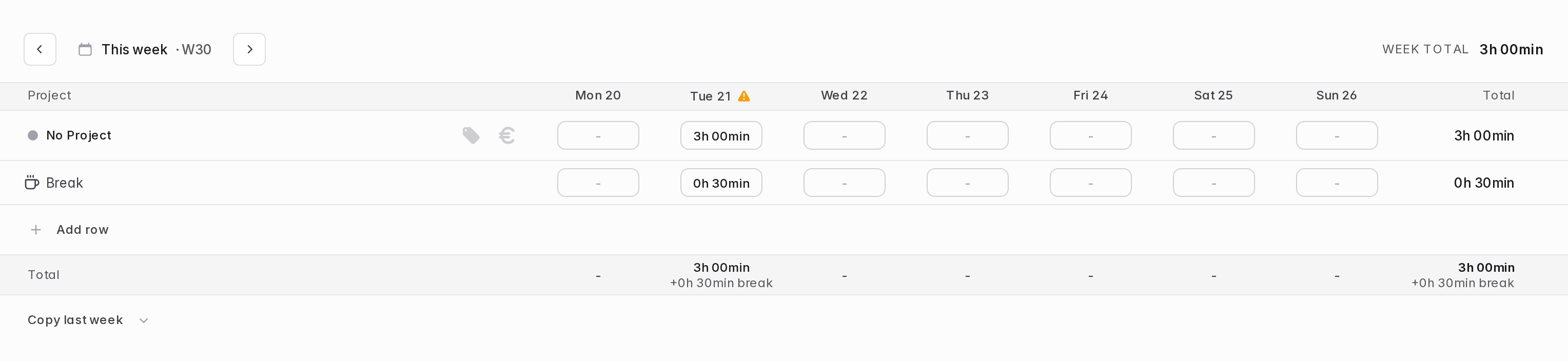
Every page points misaligned breaks out with an amber warning sign. On the Time page it appears next to the break entry, and clicking it opens a shortcut that jumps to the break's day in the calendar, where it is easiest to fix (shown above).
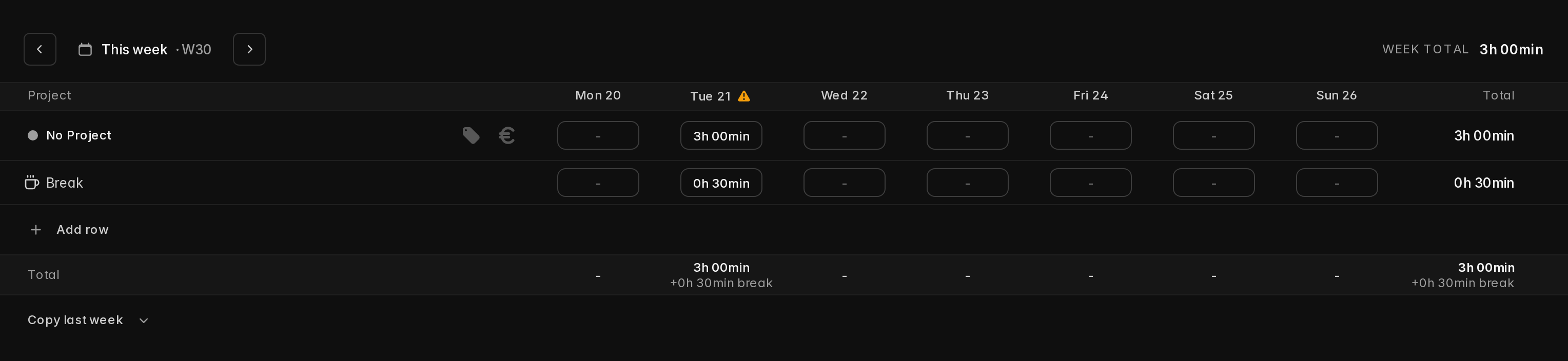
Timesheet: the sign appears in the header of the affected day
Calendar: the break entry itself carries the sign
Editing breaks
Every time entry has a type, either Work time or Break, which you can change in the entry's edit dialog. Note that switching an entry to Break clears its project, task, tags, and billable status, since breaks can't carry any of these.
When you select multiple entries and use mass update, break entries are skipped entirely if the change involves a project, tags, or billable status. A warning in the dialog and a notice after saving tell you which entries were left untouched.
Disabling breaks again
Turning Allow tracking breaks off doesn't delete anything: existing break entries stay visible on the Time page, in the timesheet (as a read-only Break row), and in the calendar. You just can't create new ones. The break controls disappear, and Copy last week leaves last week's breaks out.
The reporting pages are an exception: while breaks are disabled, reports only include work time, so existing break entries are hidden there. Enable breaks again to see them in reports.
Permissions
Tracking breaks works like tracking any other time entry: every role that can track time can track breaks. Only owners and admins can change the Allow tracking breaks organization setting. See Roles for a full overview of role-based permissions.